AMS Keyboard Layout – Complete Guide for Hindi Calligraphy Typing (2025)
If you work in Hindi or Marathi design — wedding cards, banners, DTP printing, or festival posters — you have probably heard about AMS fonts. They are the go-to choice for professional calligraphy in India. But before you can use them, you need to understand one thing: the AMS keyboard layout.
This guide covers everything — what the AMS keyboard layout is, the full key mapping chart, how phonetic typing works, how to use AMS fonts in CorelDraw, and how to convert Unicode text to AMS format instantly.
Table of Contents
What Is the AMS Keyboard Layout?
AMS stands for Akshar Mala System. It is a specialized font encoding system developed for Indian language calligraphy — primarily Hindi, Marathi, and Gujarati.
The AMS keyboard layout is a phonetic typing system. That means you type in English, and the software converts it into the correct Devanagari script. For example, type namaste and you get नमस्ते. Type shubh vivah and you get शुभ विवाह.
This is what makes AMS so beginner-friendly. You do not need to memorize a completely new keyboard layout like Remington or InScript. You simply type the way the word sounds in English, and AMS handles the rest. Over 4 lakh designers across India use AMS fonts daily for professional calligraphy work through software like IndiaFont. The AMS system supports Hindi, Marathi, Gujarati, and English — all using the same phonetic approach.
AMS Font vs Kruti Dev vs Unicode — Key Differences
Before diving into the keyboard layout, it is important to understand where AMS fonts fit in comparison to other common Hindi font systems.
| Feature | AMS Font | Kruti Dev | Unicode (Mangal) |
|---|---|---|---|
| Typing Method | Phonetic | Remington | InScript / Phonetic |
| Letter Design Variations | 5 to 12 variations | Single fixed | Single fixed |
| Calligraphy Quality | Professional | Basic | Standard |
| Use in CorelDraw | Best results | Works well | Rendering issues in older DTP software |
| Web Compatibility | Desktop only | Requires font installation | Works everywhere |
| Best Use Case | Wedding cards, festival banners, artistic design | Government typing, DTP, official documents | Digital publishing, exams, online content |
Pro Tip
The bottom line — if you need beautiful calligraphy for print design, AMS is the best choice. If you need to convert between Unicode and AMS formats, use our AMS Font Converter.
AMS Keyboard Layout — Full Key Mapping Chart
The AMS phonetic keyboard maps English characters to Hindi/Devanagari characters based on sound. Here is the complete reference chart.
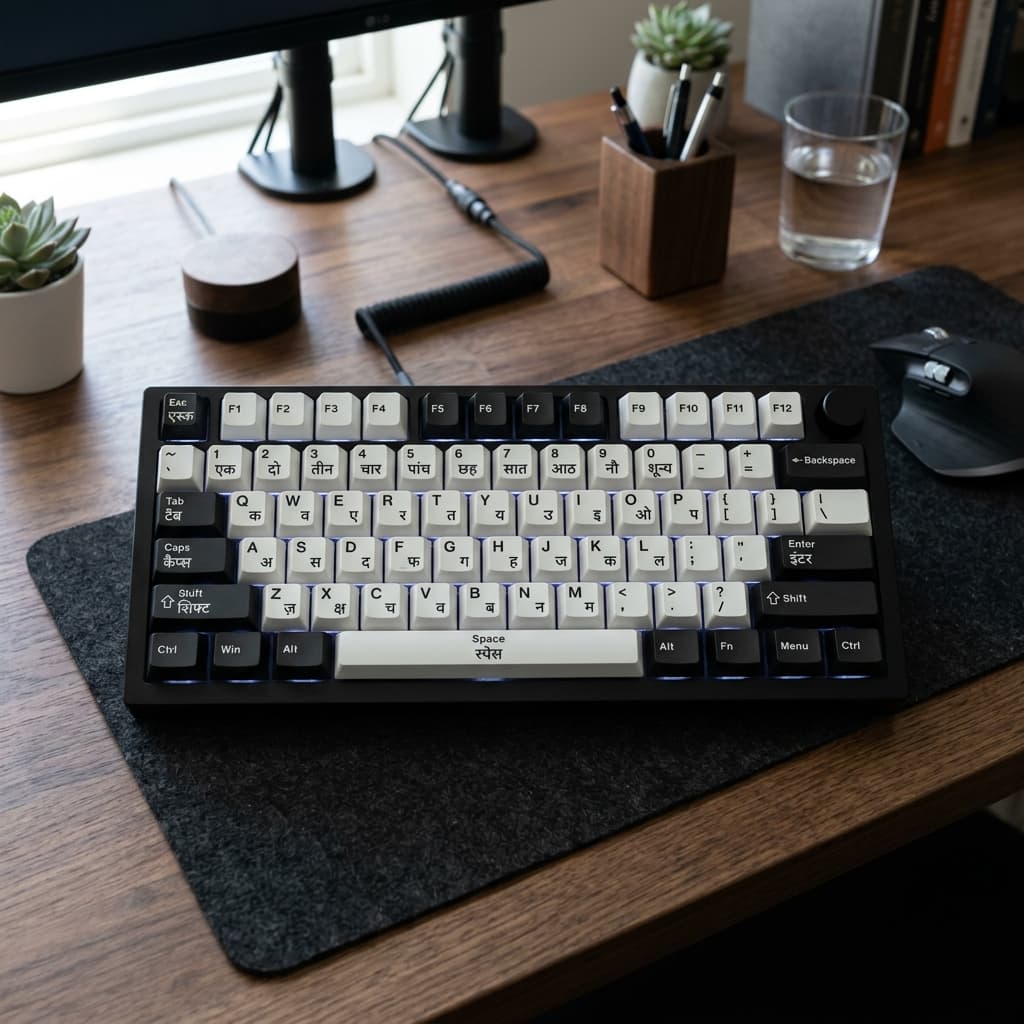
VOWELS (Swar)
| Type (English) | Hindi Output | Name |
|---|---|---|
| a | अ | Short A |
| aa / A | आ | Long Aa |
| i | इ | Short I |
| ee / I | ई | Long Ee |
| u | उ | Short U |
| oo / U | ऊ | Long Oo |
| e | ए | E |
| ai | ऐ | Ai |
| o | ओ | O |
| au / aw | औ | Au |
| N | अं | Anusvaar (Nasal) |
| H | अः | Visarg |
CONSONANTS (Vyanjan)
Most consonants map intuitively to their English equivalents.
kकkhखgगghघchचchhछjजjhझtटthठdडdhढnनpपph / fफbबbhभmमyयrरlलv / wवshशsसhहRड़Rhढ़SPECIAL CONJUNCTS (Auto-formed)
These complex letters will form automatically when you type the letters together.
kshक्षgyaज्ञtrत्रshriश्रीstrस्त्र
MATRA EXAMPLES
Combining consonants and vowels generates the correct Matra effortlessly.
| Type | Output | Explanation |
|---|---|---|
| ka | का | K + Aa matra |
| ki | कि | K + I matra |
| kee | की | K + Ee matra |
| ku | कु | K + U matra |
| koo | कू | K + Oo matra |
| ke | के | K + E matra |
| ko | को | K + O matra |
| shubh | शुभ | Full word — automatic |
| vivah | विवाह | Full word — automatic |
| namaste | नमस्ते | Conjunct + matra — automatic |
Phonetic Typing Rules — 3 Things You Must Know
Rule 1 — Short and Long Vowels Matter
Hindi has both short and long versions of vowels. In AMS phonetic typing, short vowels use lowercase single letters and long vowels use double letters or uppercase.
- Example:
igives इ (short), buteeorIgives ई (long). - If you type
kiran, it gives किरन — correct. - If you type
kiraanit gives किरान — wrong spelling.
Always pay attention to vowel length. This is the most common mistake beginners make.
Rule 2 — Conjuncts Form Automatically
You do not need to manually add halant (्) to create conjuncts. Simply type the two consonants together, and AMS software handles the combination automatically.
- Type
ksh→ get क्ष automatically. - Type
gya→ get ज्ञ automatically. - Type
namaste→ get नमस्ते with the conjunctstforming automatically.
Rule 3 — Never Add Halant Manually
If you try to manually insert halant characters, the layout of the text will break. AMS phonetic engine is designed to manage conjuncts internally. Trust the system and type naturally — the software will produce the correct output.
How to Type AMS Fonts in CorelDRAW
AMS fonts do not work directly in CorelDraw's text tool because CorelDraw's rendering engine is optimized for Unicode. Typing AMS directly in CorelDraw gives broken or incorrect output.
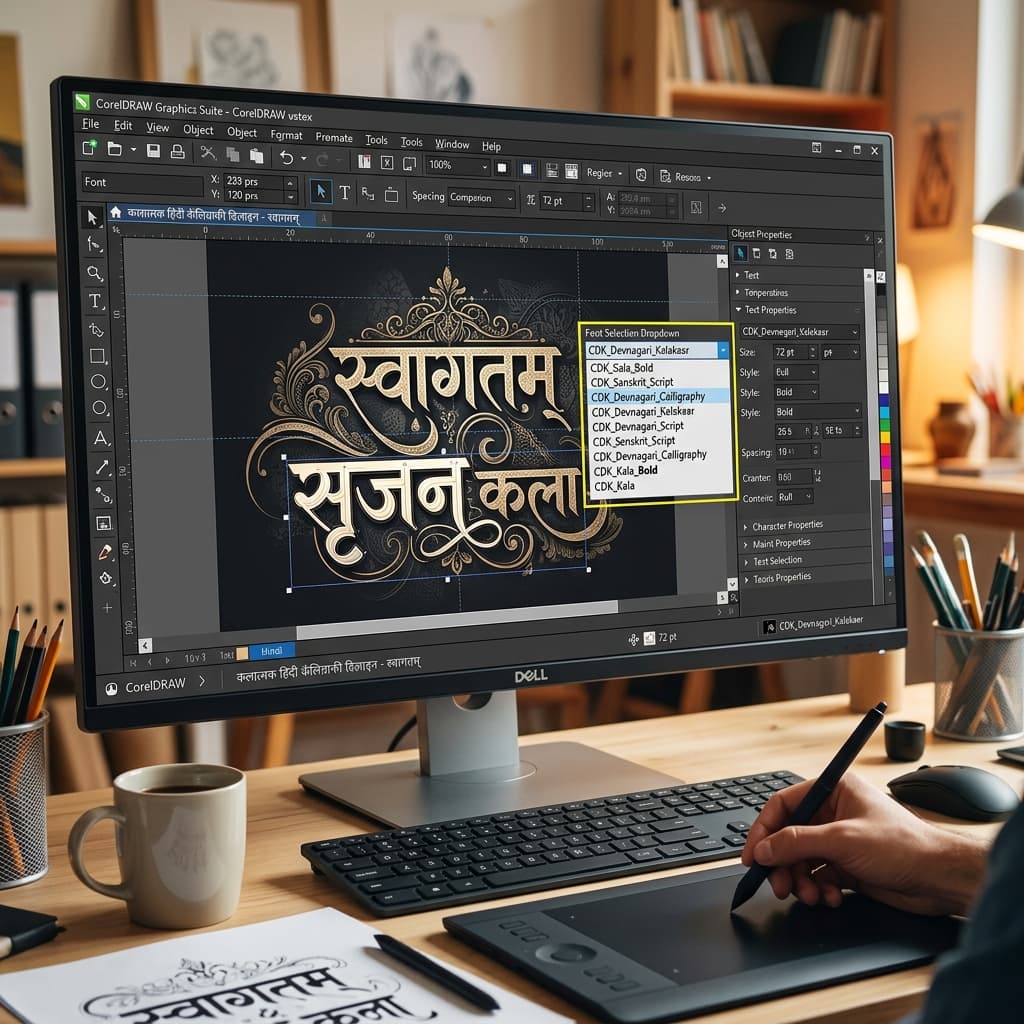
The correct workflow is:
- Step 1 — Open your AMS-compatible software (such as IndiaFont) on your computer.
- Step 2 — Select the AMS calligraphy font you want to use from the font library. Popular options include AMS Prashant (flowing strokes, ideal for wedding cards), AMS Shaurya (bold, ideal for banners), AMS Varanasi (traditional, ideal for religious content), and AMS Shriman (dramatic, ideal for formal invitations).
- Step 3 — Type your text using the phonetic keyboard. For example, type
shubh vivahto get शुभ विवाह in the selected AMS calligraphy style. - Step 4 — Choose letter variations. Each letter in an AMS font has 5 to 12 artistic design options. Click through the variations to select the one that looks best for your design.
- Step 5 — Copy the output in AMS encoding and paste it into CorelDRAW with the correct AMS font selected. The calligraphy will render exactly as designed.
- Step 6 — Make sure the AMS font TTF file is installed on your system. Without it, CorelDraw will show blank boxes or garbled characters instead of Hindi text.
How to Convert Unicode Text to AMS Format
Many designers already have text written in Unicode — copied from WhatsApp, a Word document, or a website — and need to convert it to AMS format for design work.
For this, you need a dedicated converter tool. Our Unicode to AMS Font Converter lets you paste any Hindi or Marathi Unicode text and get AMS-compatible output in one click.
The tool is completely free, works in any browser, requires no software installation, and supports unlimited text length.
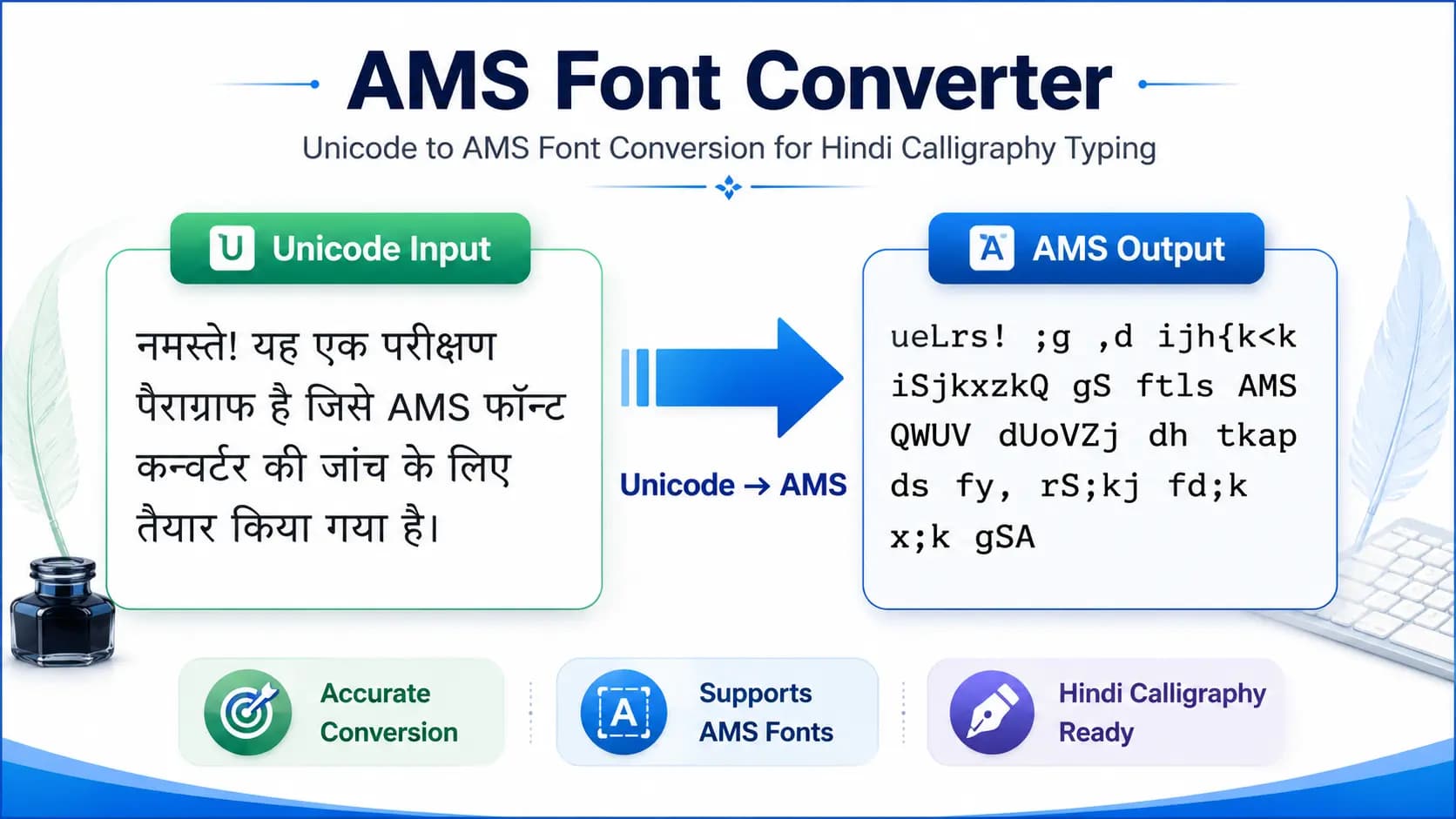
Recommended workflow for designers
- Type your text in Unicode using Mangal font — it is easy and works everywhere.
- Paste it into our AMS Converter.
- Copy the AMS output.
- Paste it into CorelDRAW or Photoshop with the AMS font selected.
- Your calligraphy design is ready.
Common Mistakes and How to Fix Them
Mistake 1 — Confusion Between Short and Long Vowels
Problem: Typed kiran but got किरान instead of किरन.
Fix: Use single i for short vowel (इ) and ee or I for long vowel (ई). Check vowel length every time you are unsure.
Mistake 2 — Conjunct Not Forming Correctly
Problem: Typed ksh but got क्श instead of क्ष.
Fix: This usually happens with an incomplete or trial version of AMS software. Use the full installed version. Some conjuncts require proper software to render.
Mistake 3 — Broken Text in CorelDRAW
Problem: Pasted AMS text in CorelDraw, but seeing boxes or question marks.
Fix: The AMS font TTF file is not installed on the system. Download and install the correct AMS font file. Restart CorelDraw after installation. The font will then appear in the font list with the AMS prefix.
Mistake 4 — Trying to Add Halant Manually
Problem: Manually inserting a halant caused the text layout to break.
Fix: Never add a halant manually in AMS phonetic typing. Simply type the consonants together, and the software handles the conjunct automatically.
Mistake 5 — Typing Directly in CorelDRAW
Problem: Typed Hindi text directly in CorelDraw using AMS font — output is wrong.
Fix: CorelDRAW does not support AMS direct typing. Always type in AMS software first, then paste the encoded output into CorelDraw.
Conclusion
The AMS keyboard layout is one of the most designer-friendly ways to type Hindi and Marathi calligraphy. Its phonetic approach means you do not need to memorize complex key positions — you just type the way the words sound, and AMS handles everything else.
Whether you are designing a wedding invitation, a Diwali banner, or a professional publication, understanding the AMS key mapping gives you full control over your typography. Combine it with our free Unicode to AMS Converter and your design workflow becomes faster and easier than ever.
Bookmark this guide, print the key mapping chart, and start practicing — your calligraphy designs will never look the same again.
Frequently Asked Questions
Ready to convert? Our main tool handles Unicode ↔ Shree Lipi with the same accuracy and speed — instantly in your browser.
Try Unicode ↔ Shree Lipi Converter