Marathi Typing Rules & Shortcuts – Complete Guide 2026
Marathi uses the same Devanagari script as Hindi — but if you approach Marathi typing with a Hindi-first mindset, you will run into problems fast. Several characters that do not exist in Hindi are used daily in Marathi. Key positions are different on some layouts. Matras and nasal markers behave differently in specific contexts. And if your workflow involves Shree Lipi fonts for print work, there is an additional layer of rules that applies only to Marathi.
This guide covers the complete picture — Marathi-specific characters, keyboard layout choices, shortcuts, the most common mistakes, and how to handle Shree Lipi conversion for print workflows.
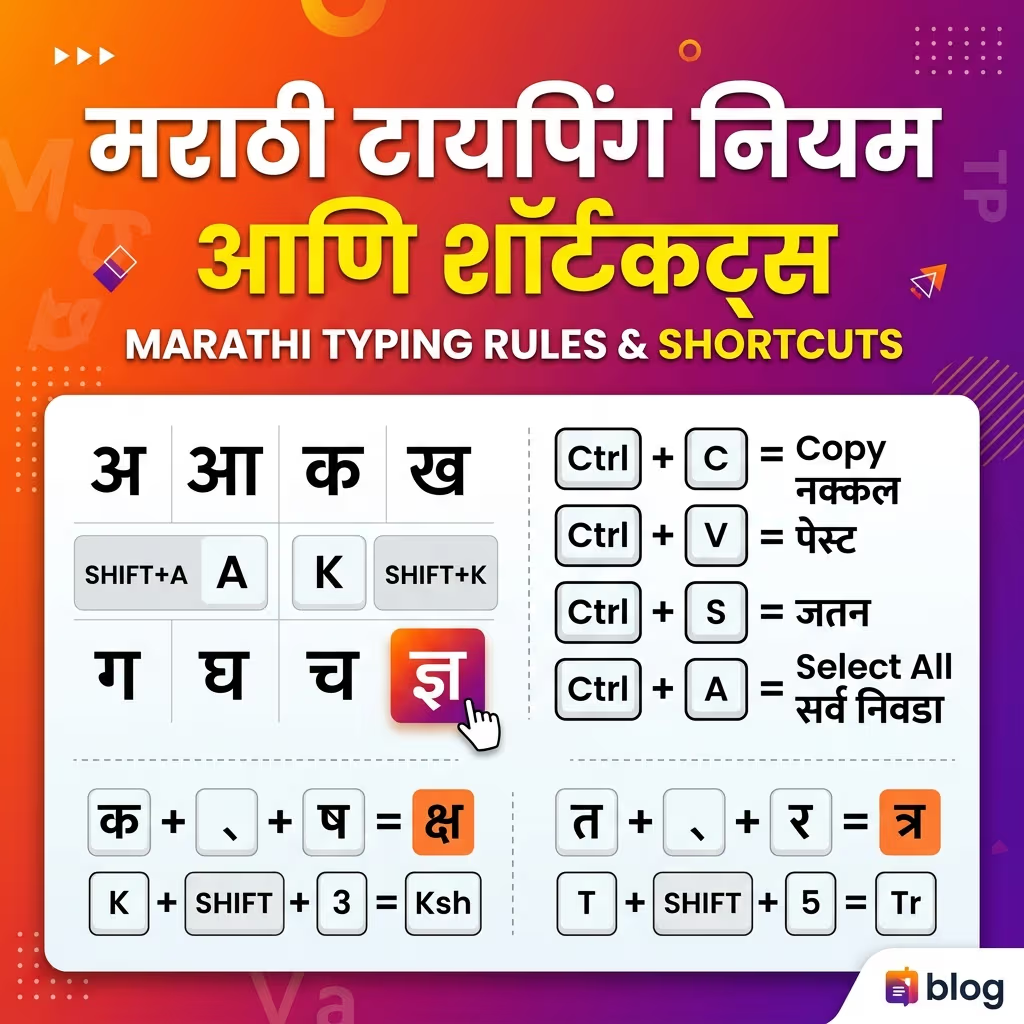
Table of Contents
- Marathi Is Not Hindi — The Key Differences in Typing
- Marathi-Specific Characters You Must Know
- Keyboard Layout Options — InScript vs Phonetic
- InScript Shortcuts for Marathi-Specific Characters
- Conjuncts in Marathi — How to Type Half-Characters
- Common Typing Mistakes — And How to Avoid Them
- Converting Marathi Unicode to Shree Lipi for Print Work
- Marathi Typing on Mobile
- Frequently Asked Questions
Marathi Is Not Hindi — The Key Differences in Typing
With 83 million speakers, Marathi is India's third most spoken language and the official language of Maharashtra. It shares Devanagari with Hindi, Sanskrit, and Nepali — but has several characters that Hindi does not use and that standard Hindi keyboard layouts do not include by default.
If you have been typing Hindi and switch to Marathi without adjusting your setup, these missing characters will become a daily problem.
| Feature | Marathi Typing | Hindi Typing |
|---|---|---|
| Special Consonants | ळ (ḷa) is standard and highly frequent | ळ is virtually never used |
| Special Vowels | ऑ (ô) and ॲ (æ) for English loanwords | Only ऑ is occasionally used; ॲ is absent |
| Eyelash Ra (ऱ) | Dedicated eyelash character ऱ | Not used in standard Hindi words |
| Standard DTP Font | Shree Dev 0714 (Shree Lipi ASCII layout) | Kruti Dev (Remington layout) / Mangal (Unicode) |
Marathi-Specific Characters You Must Know
These four characters are the most important Marathi-specific distinctions in typing:
- ळ — Retroflex Lateral Approximant:This is the character most likely to trip up Hindi typists switching to Marathi. ळ appears constantly in Marathi words — महाराळ, गाळ, पाळणा, वाळू — and has no equivalent in standard Hindi. In InScript, ळ is accessible via a specific key combination (typically the
~key or a Shift combination depending on your keyboard configuration). In phonetic typing, type "La" or "La" with a capital L and the tool converts it automatically. Check your specific phonetic tool's mapping — different tools handle this differently. - ऱ — Eyelash Ra:The eyelash ra (ऱ) appears in Marathi when the ra character takes a specific form at the end of a word or in specific conjunct positions. It is visually distinct from the standard र — the shape includes an eyelash-like stroke beneath it. In InScript, it is accessible via Shift + specific key. In phonetic tools, typing "rr" or "r." (r followed by a period) typically produces ऱ. In Shree Lipi fonts, the eyelash ra has a dedicated key combination that differs from Unicode InScript.
- ऑ — O with Chandrabindu (Loanword Vowel):ऑ is used in Marathi for English loanword sounds — words like ऑफिस (office), ऑक्टोबर (October), ऑटो (auto). In InScript, it is accessed via a specific Alt key combination. In phonetic typing, "Ao" or "O" with a capital letter typically produces it. This character was added to the Unicode Devanagari block specifically to handle English sounds in Indian language contexts — and Marathi was the primary driver of that addition.
- ॲ — Short Ae Vowel:ॲ represents a short æ sound that appears in some Marathi words and English borrowings. Less frequent than ऑ but equally important when it is needed. In InScript, access it via Alt key combination. In phonetic tools, "ae" or "E" (capital) typically maps to this character. If ॲ is not available in your typing tool, it may appear as ए instead — this is a common shortcut in informal Marathi typing but is technically incorrect.
| Glyph | InScript Key | Phonetic Sequence | Example Word |
|---|---|---|---|
| ळ | ~ (Tilde key) | La / L | टिळक, शाळा |
| ऱ | Shift + ~ | rr / r. | सऱ्या, पऱ्या |
| ऑ | Shift + \ | Ao / O | ऑफिस, कॉलेज |
| ॲ | Shift + ` (or Alt + A) | ae / E | ॲप, बॅट |
Keyboard Layout Options — InScript vs Phonetic
You have two main options for Marathi typing. The right one depends on how you use it.
InScript — The Government Standard
InScript is the official keyboard layout for all Indian languages, standardised by the Bureau of Indian Standards as IS 16350:2016. It is built into Windows and requires no additional software.
Setting up Marathi InScript on Windows:
Go to Settings > Time & Language > Language. Click Add a Language. Search for Marathi and select Marathi (India). Once installed, click on Marathi (India) > Options. Under Keyboards, you will see Devanagari INSCRIPT listed. Enable it. Switch between English and Marathi using Windows Key + Spacebar. For a deeper layout comparison, check our dedicated InScript vs Remington Layout Guide.
Key advantages of InScript:
The layout is logical — vowels are grouped on the left side of the keyboard, consonants on the right. Once you learn InScript for Marathi, the same key logic transfers to Hindi, Bengali, Gujarati, and 10 other Indian languages — you do not need to relearn the layout for each one. InScript is the layout used in government typing exams and official Maharashtra state government digital work.
The challenge with InScript:
Marathi-specific characters like ळ, ऱ, ॲ, and ऑ require Alt key combinations or Shift combinations that are not immediately obvious. Print the complete Marathi InScript key chart and keep it at your workstation for the first two to three weeks. After that, the positions become automatic.
Phonetic — Type as You Speak
Phonetic Marathi typing works on transliteration. You type Marathi words the way they sound in English — type "namaskar" and you get नमस्कार. Type "maharashtra" and you get महाराष्ट्र.
Tools that support Marathi phonetic typing: Google Input Tools for Marathi (available as a Chrome extension and as a standalone download), Microsoft Indic Input 3, Gboard on Android (Marathi phonetic), iOS built-in Marathi keyboard with phonetic mode.
Key advantages of phonetic:
Zero learning curve. If you can type English, you can type Marathi phonetically within hours. It works across all devices — Windows, Mac, Android, iPhone — without any system-level configuration.
Limitation:
Marathi-specific characters like ळ and ऱ require specific phonetic sequences that vary between tools. Some phonetic tools produce slightly incorrect output for rare Marathi characters. For professional DTP and newspaper work, InScript is the more precise and reliable choice.
Which Layout Should You Choose?
For government exams, professional DTP, and Maharashtra government document work — InScript. For personal use, social media, WhatsApp, and everyday Marathi typing — phonetic is faster to start with. For newspaper and formal publishing — InScript, consistently.
InScript Shortcuts for Marathi-Specific Characters
These are the key combinations for Marathi characters that are not obvious from the standard layout:
| Marathi Character | InScript Key combination | Phonetic input |
|---|---|---|
| ळ (ḷa) | ~ key (without Shift) | La |
| ऱ (eyelash ra) | Shift + ~ (or Shift + `) | rr / r. |
| ऑ (loan O) | Shift + \ | Ao / O |
| ॲ (loan Ae) | Shift + ` | ae / E |
| ् (Virama / Halant) | D key | (Forms automatically) |
| ं (Anusvara) | Q key | n / N / m |
| ँ (Chandrabindu) | Shift + ` | ch-bindu |
| ः (Visarga) | X key | ah / H |
| ऽ (Avagraha) | Shift + X | . (period) |
Note: Exact key positions for Alt combinations can vary between Windows versions and keyboard drivers. Refer to our Mangal Font Installation & Keyboard Setup Guide to verify key setups for your system.
Conjuncts in Marathi — How to Type Half-Characters
Marathi uses conjuncts — combined consonant forms — extensively. Maharashtra, मराठी, महाराष्ट्र — all contain conjuncts. Typing them correctly requires understanding the halant (virama).
The rule is consistent across InScript:
Type the first consonant + press D (halant/virama) + type the second consonant.
The rendering engine combines them into the correct conjunct form automatically.
Common Conjunct Typings:
- क्ष (ksha): Press
K(for क) → PressD(halant) → PressShift + K(for ष) → System renders क्ष. - त्र (tra): Press
T(for त) → PressD(halant) → PressR(for र) → Renders as त्र. - ष्ट (shta): Press
Shift + K(for ष) → PressD(halant) → Press'(apostrophe key for ट) → Renders as ष्ट. - ष्ट्र (shtra): Press
Shift + K(for ष) → PressD→ Press'→ PressD→ PressR(for र) → Renders as ष्ट्र.
In phonetic typing, common conjuncts form automatically from their phonetic spelling — type "ksha" and you get क्ष directly without needing the halant key.
The same conjunct rules apply to Marathi and Hindi in InScript because both use the same Devanagari script. What differs is which conjuncts appear most frequently in Marathi vocabulary — conjuncts like ष्ट (shta) in शिष्ट, ष्ट्र (shtra) in महाराष्ट्र, and ण्ट (nta) are far more common in Marathi than in standard Hindi text.
Common Typing Mistakes — And How to Avoid Them
1. Confusing Anusvara (ं) and Chandrabindu (ँ)
This is the most common error in Marathi typing and it matters because the two characters are not interchangeable — using one where the other belongs changes the word or makes it incorrect.
- Anusvara (ं): The dot above the character is used in most nasal sounds in Marathi. Words like संगीत, बंद, मंत्री all use anusvara. In InScript, it is the
Qkey. - Chandrabindu (ँ): The crescent moon with a dot above it is used for nasalisation specifically in the half-anunaasik context in Marathi. It appears in words like साँग, (in older Marathi spellings) and in specific regional or formal contexts. In InScript, it is typically
Shift + ~.
Rule: If the nasal sound is a full consonant-replacing nasalisation, use anusvara (ं). If it is a vowel nasalisation without consonant replacement — the half-anunaasik — use chandrabindu (ँ).
2. Using Hindi Font Shortcuts in Marathi Text
If you learned Shivaji, Kiran, or Akruti font keyboard layouts for Marathi legacy fonts, and then switch to a Shree Lipi layout like Shree Dev 0714, the key positions change. Shree Dev 0714 and Shivaji have different character map tables. Applying Shivaji muscle memory to a Shree Lipi layout produces systematic errors throughout the text.
Rule:Always confirm which font your DTP template uses and verify the keyboard layout matches that specific font's character map. Never assume one Marathi legacy font layout works for another.
3. Incorrect Matra Placement
In Devanagari script, matras (vowel signs) attach to the preceding consonant — but their visual position can be before the consonant (the i-matra ि appears to the left of the consonant it belongs to), after the consonant, above, or below. The rendering engine handles this automatically in Unicode, but in legacy fonts, the matra is typed before the consonant visually even though phonetically it comes after.
If you are switching between Unicode and Shree Lipi workflows, the matra sequencing rule differs. In Unicode — type the consonant first, then the matra. The rendering engine positions them correctly. In legacy Shree Lipi — the typing sequence follows the visual position, not the phonetic order, for some matras. This sequencing difference is the most common source of matra errors when switching between Unicode and Shree Lipi workflows. For more details on how ASCII vs Unicode works, see our Unicode vs ASCII Guide.
Converting Marathi Unicode to Shree Lipi for Print Work
Maharashtra's newspaper and print publishing industry has deep roots in Shree Lipi fonts — particularly Shree Dev 0714, which has been the standard for Marathi newspaper body text for decades. Maharashtra Times, Sakal, Lokmat, and many regional Marathi publications built their page layout workflows around Shree Lipi.
If you type Marathi content in Unicode and need to use it in a Shree Lipi-based layout in CorelDRAW or PageMaker, you cannot paste Unicode text directly. The encoding systems are incompatible — Unicode Devanagari and Shree Lipi ASCII mapping use completely different character position tables. Pasting Unicode into a Shree Lipi layout produces garbled output. For detailed instructions on CorelDRAW layouts, refer to our CorelDRAW Hindi & Marathi Typing Guide.
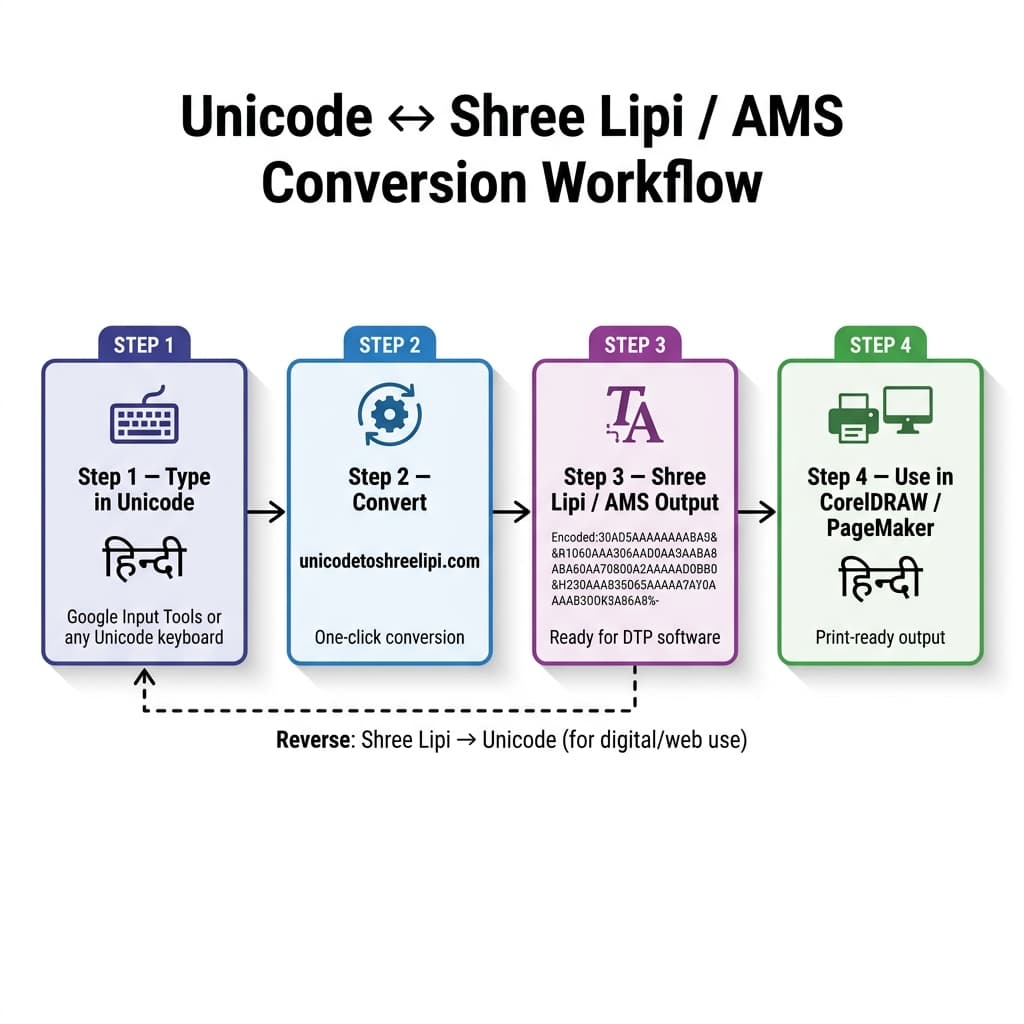
The Correct DTP Workflow:
- Type your Marathi text in Unicode (using InScript or phonetic input on any device). Keep this Unicode text as your master copy.
- Go to the Unicode to Shree Lipi Converter at unicodetoshreelipi.com.
- Paste your Unicode text, select the correct Shree Lipi target variant (Shree Dev 0714 for most Marathi newspaper work), and click Convert.
- The output is Shree Lipi-encoded text. Copy it, paste it into CorelDRAW or PageMaker, and apply the matching Shree Lipi font. Your Marathi text renders correctly.
Important Check During Conversion
Two Marathi-specific characters need manual verification after conversion:
The eyelash ra (ऱ): Its encoding position in Shree Lipi differs slightly from its Unicode representation. Always spot-check ऱ in the converted output.
The chandrabindu (ँ): Verify it renders correctly in a test paste before processing the full document.
Our converter tool at unicodetoshreelipi.com handles the full Marathi Devanagari character set including these Marathi-specific characters, the half-anunaasik, Marathi conjuncts, and the complete matra set — free, with no character limit and no subscription.
Marathi Typing on Mobile
For Android (Gboard)
Gboard supports Marathi phonetic and InScript layouts. Go to Settings > System > Language & Input > On-Screen Keyboard > Gboard > Languages > Add Keyboard > Marathi. Select either QWERTY (phonetic) or InScript as the layout preference.
For iPhone (iOS Keyboard)
Go to Settings > General > Keyboard > Keyboards > Add New Keyboard > Marathi. iOS includes a built-in Marathi keyboard. The phonetic layout is the default option.
On both platforms, ळ, ऱ, ऑ, and ॲ are accessible by long-pressing related characters — the device shows a popup of extended character options for that key position.
Conclusion
Marathi typing is straightforward once you understand what makes it distinct from Hindi. The script is shared. The InScript layout is shared. What differs is a handful of critical characters — ळ, ऱ, ऑ, ॲ, and the precise use of anusvara versus chandrabindu — that require specific keyboard knowledge and careful attention.
For Unicode Marathi typing, InScript on Windows (built-in, no download) is the most reliable professional setup. For phonetic Marathi on mobile or casual use, Gboard or iOS Marathi keyboard gives you immediate results with no configuration.
For print DTP work in Shree Lipi-based CorelDRAW or PageMaker layouts — type in Unicode, convert at Unicode to Shree Lipi Converter, paste the Shree Lipi output, and apply the font. Keep your Unicode master for everything digital.
Explore our related guides on the History of the Shree Lipi Font Family, CorelDraw Hindi & Marathi Typing Guide, and Unicode vs ASCII — How Devanagari Fonts Actually Work for the complete picture of professional Marathi DTP.
Frequently Asked Questions
Ready to convert? Our main tool handles Unicode ↔ Shree Lipi with the same accuracy and speed — instantly in your browser.
Try Unicode ↔ Shree Lipi Converter