Mangal Font Download Free – Complete Windows Install Guide for Exams (2025)
If you are preparing for an SSC, CPCT, UP Police, CISF, or High Court Hindi typing exam, the first thing you need to set up on your computer is Mangal font. It is the official Unicode Hindi font accepted by the Indian government for all modern typing tests and official documentation.
But here is where most candidates get confused — simply downloading the font file is not enough. Mangal is just the visual display layer. To actually type Hindi in Mangal, you also need to enable the right keyboard input method. Get this setup wrong and you will spend hours in frustration typing English letters instead of Hindi.
This guide covers everything from scratch — what Mangal font is, why every government exam now requires it, how to download it free, how to install it correctly on Windows 10 and Windows 11, how to set up both InScript and Remington Gail keyboards, and how to troubleshoot the most common problems.
Table of Contents
- What Is Mangal Font?
- Why Every Government Exam Now Uses Mangal Font
- Mangal Font vs Kruti Dev — Key Differences
- The Most Important Thing Candidates Get Wrong
- How to Download Mangal Font Free
- Setup Method 1 — InScript Keyboard
- Setup Method 2 — Remington Gail Keyboard
- Remington Gail Keyboard Layout Reference
- InScript Keyboard Layout Reference
- Which Keyboard Should You Learn?
- Speed Requirements for Major Exams
- How Mangal Connects to Shree Lipi Workflow
- Common Problems and Fixes
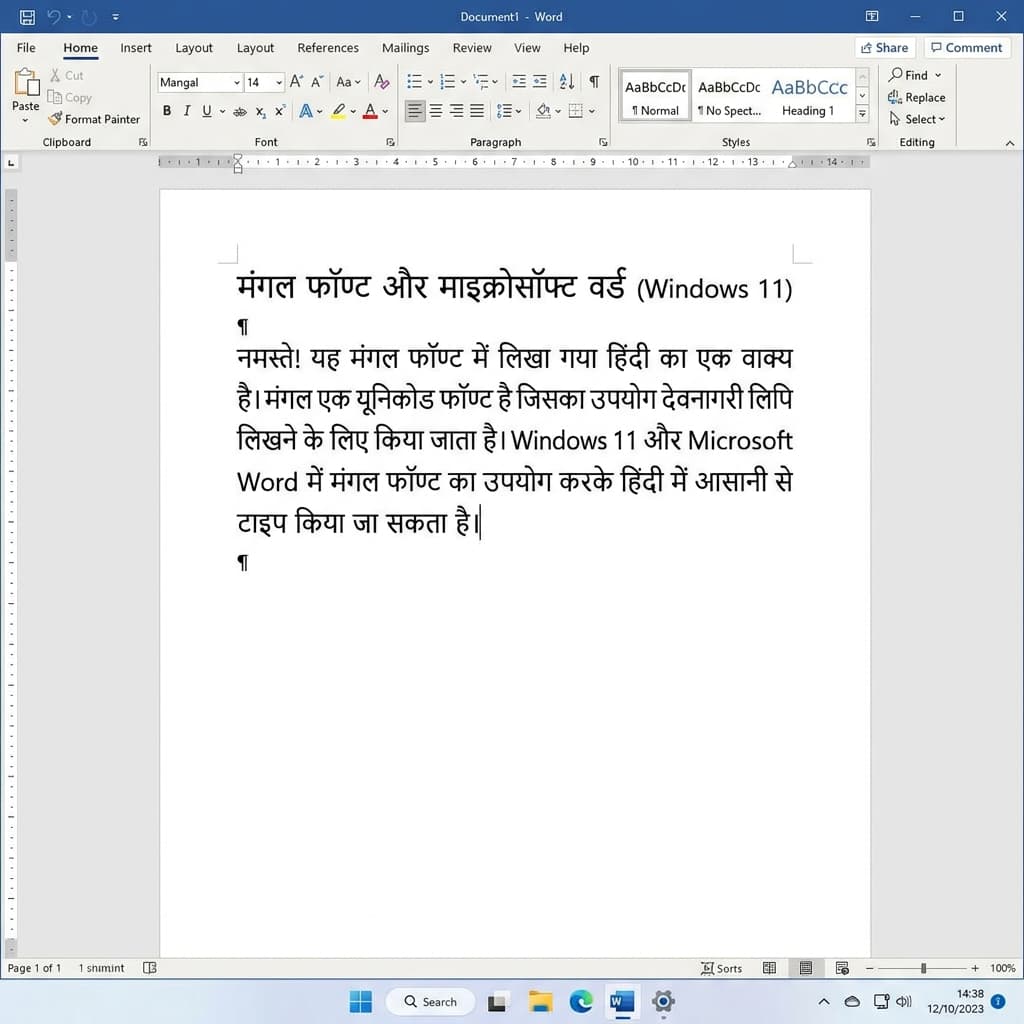
Mangal is the official Unicode font for Hindi typing in all central government exams.
What Is Mangal Font?
Mangal is a Unicode-compliant Devanagari font developed by Microsoft as part of the Bhasha India project. It supports the full Unicode Devanagari character set — from U+0900 to U+097F — covering every character needed for Hindi, Marathi, Sanskrit, and Nepali.
The key difference between Mangal and older Hindi fonts like Kruti Dev or DevLys is the underlying standard. Kruti Dev is a legacy ASCII-based font — it maps Hindi characters to English keyboard keys using a private custom encoding. Text typed in Kruti Dev looks like random English letters if the font is not installed on the recipient's device.
Mangal, on the other hand, uses the Unicode standard. Every character has a universal code point recognized by all modern operating systems, browsers, and applications. Text typed in Mangal can be read on any device — Android, iPhone, Mac, Linux — without any font installation. This is why the Indian government moved all official digital work to Unicode, and why all modern typing exams now require Mangal instead of Kruti Dev.
Why Every Government Exam Now Uses Mangal Font
The shift from Kruti Dev to Mangal was not sudden — it has been happening steadily across all government recruitment bodies over the past decade. Today, virtually every central government exam that includes a Hindi typing component specifies Mangal Unicode as the required font. Here is why:
- Universal compatibility. Mangal text survives being copied across documents, emails, websites, and databases without breaking. Government digital records, court filings, and official portals all need text that works everywhere — and Unicode delivers that.
- Searchability. Text in Mangal is fully searchable. Government databases where candidates type their applications, documents, or filings can index and search the content. Kruti Dev text cannot be searched because it is stored as ASCII codes, not actual Hindi characters.
- Future-proofing. The Unicode standard is maintained by an international consortium and is the global foundation for all modern text encoding. Legacy fonts like Kruti Dev are not supported in any modern software development. Government IT departments made the practical decision to align with the global standard.
- Government mandate. The Department of Official Language and various state IT policy documents have formally instructed government offices to use Unicode-compliant fonts for all Hindi typing. Mangal is the Microsoft-developed font that fulfills this requirement on Windows systems.
Here is a list of major government exams that currently require Mangal Unicode for Hindi typing:
- SSC CHSL, SSC CGL (Data Entry Operator posts) — Staff Selection Commission Hindi typing tests use Mangal with InScript or Remington Gail layout depending on the notification.
- CPCT — The Madhya Pradesh Computer Proficiency Certification Test is one of the most important state-level typing certifications, and it uses Mangal Unicode exclusively.
- CRPF, CISF, BSF — Central Armed Police Force recruitment exams with Hindi typing components specify Mangal Unicode.
- UP Police Computer Operator — Uttar Pradesh state police recruitment with computer typing requirement uses Mangal Remington Gail layout.
- High Court Exams — Various state High Court clerical and stenographer recruitment tests use Mangal for Hindi typing.
- RSMSSB, Rajasthan High Court — Rajasthan government exams use Mangal Unicode.
- RRB NTPC, RRB Group D — Railway Recruitment Board data entry operator posts require Unicode Hindi typing.
Always check your specific exam notification to confirm which keyboard layout — InScript or Remington Gail — is specified. The font will always be Mangal, but the keyboard layout varies by exam.
Mangal Font vs Kruti Dev — Key Differences
Before you set up Mangal, it helps to understand exactly how it differs from the Kruti Dev system many candidates already know.
| Feature | Mangal | Kruti Dev |
|---|---|---|
| Font Type | Unicode (Universal Standard) | Legacy ASCII (Custom Encoding) |
| Works Without Font Installed | Yes — any device can read it | No — font must be installed on every device |
| Keyboard Layout | InScript (govt standard) or Remington Gail | Remington typewriter layout |
| Government Exams Accepted | All central and most state exams | Older state exams only (UP Police older system, some state boards) |
| Web and Mobile Compatible | Fully compatible | Not compatible — shows boxes on mobile and web |
| Searchable Text | Fully searchable in databases and documents | Not searchable — stored as ASCII |
| Used in MS Word, Google Docs, Email | Works perfectly everywhere | Only in environments with font installed |
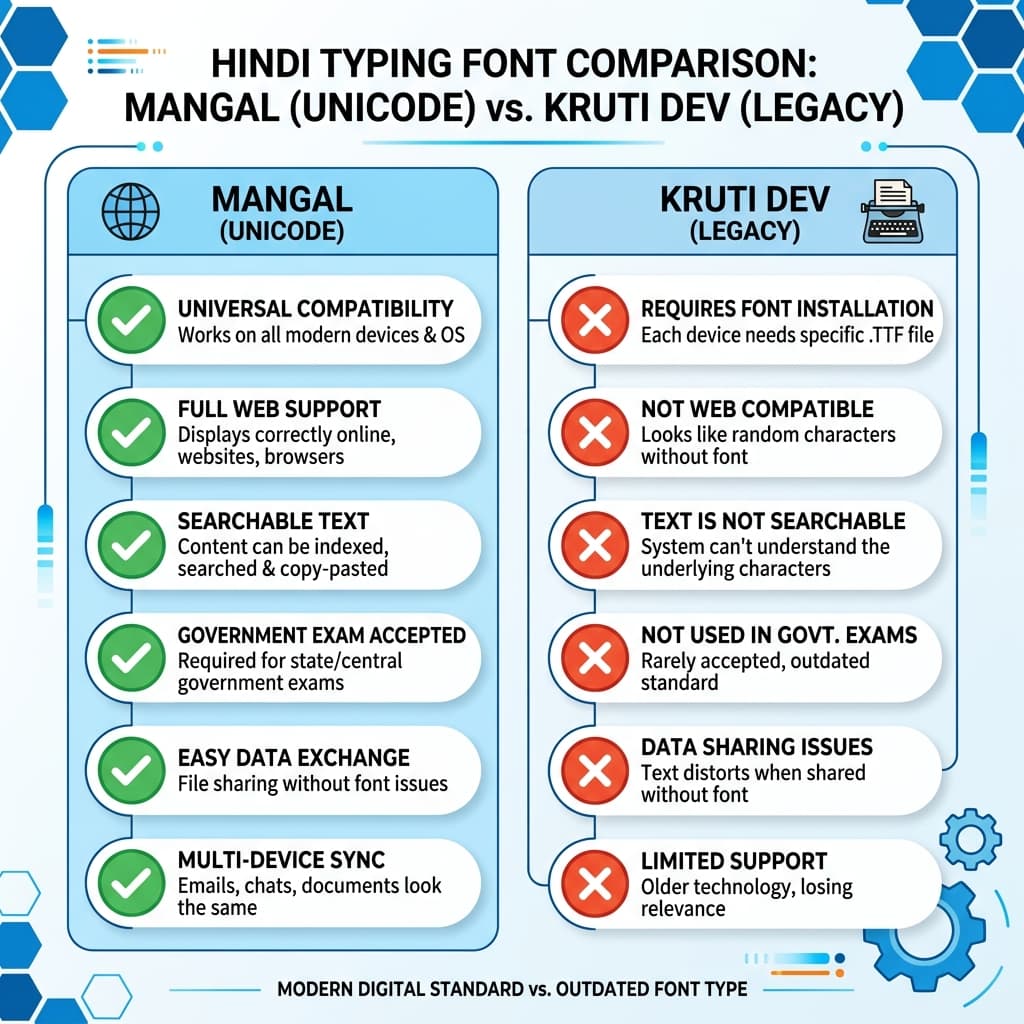
Mangal is Unicode-based and accepted across all modern platforms, unlike Kruti Dev.
The conclusion is simple — if you are preparing for any current government typing exam, Mangal is what you need. Kruti Dev is an outdated system that is being phased out completely.
The Most Important Thing Candidates Get Wrong
This is the point where most candidates waste weeks of preparation.
When you download the Mangal font .ttf file and install it, you can select "Mangal" in MS Word's font list. But when you start typing, you will only see English letters — not Hindi.
This happens because Mangal is only the visual font. It tells the computer how each character should look on screen. But you also need a keyboard input method that tells the computer which Hindi characters you are trying to type.
Think of it this way: the font is the display, and the keyboard layout is the input. You need both.
For Mangal font typing, there are two keyboard input methods:
- InScript — The official keyboard layout developed by the Indian government. It is built into Windows and requires no additional software download. Best for SSC and central government exams.
- Remington Gail — A keyboard layout that mimics the classic Remington typewriter arrangement but outputs Unicode text through Mangal. Used in CPCT, CISF, CRPF, UP Police, and many state-level exams. Requires Microsoft Indic Input 3 software installation.
The rest of this guide walks you through both setups step by step.
How to Download Mangal Font Free
Mangal font comes pre-installed with all versions of Windows from Windows 7 onwards. Before downloading anything, check if it is already on your system.
How to check if Mangal is already installed:
- Open MS Word or WordPad.
- Click the font name box in the top toolbar.
- Type "Mangal" in the search box.
- If "Mangal" appears in the dropdown, it is already installed. You do not need to download anything.
If it does not appear, or if you are on a fresh Windows 10 or Windows 11 installation where the Hindi language pack was not included, you can download the Mangal .ttf file free. The file is small (approximately 180KB), virus-free, and ready to install.
Installing the downloaded font file:
- Download the Mangal font file from unicodetoshreelipi.com/fonts.
- Open the folder where the file was saved.
- Right-click on Mangal.ttf.
- Select "Install" from the context menu.
- If Windows asks for administrator permission, click Yes.
- The font is now installed. Open MS Word and verify by typing "Mangal" in the font search box.
Setup Method 1 — InScript Keyboard (For SSC, RRB, Central Govt Exams)
InScript is the Indian government's official keyboard layout for all Indian scripts including Devanagari. It is built into every copy of Windows and requires no third-party software. This is the setup used in SSC CHSL, SSC CGL data entry, RRB NTPC, and most central government Hindi typing tests.
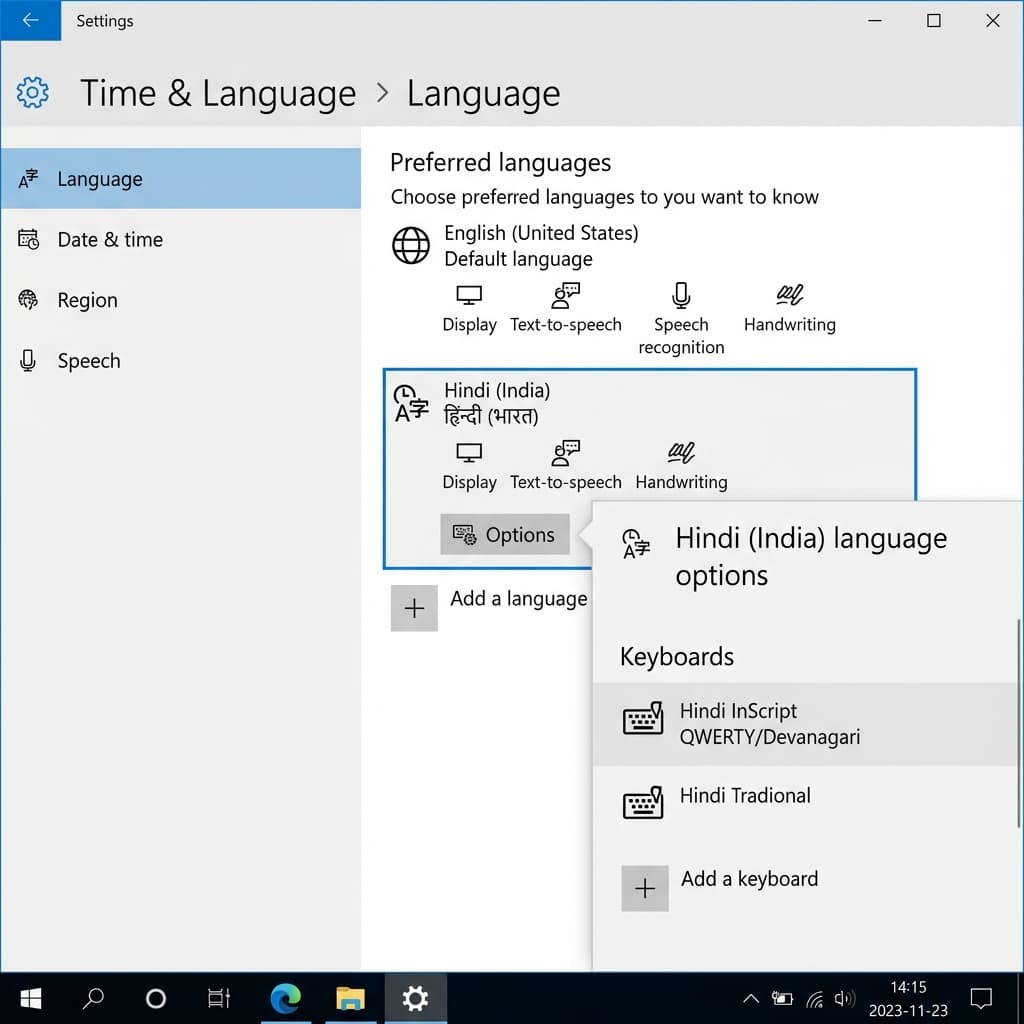
Adding Hindi InScript keyboard in Windows Settings — no third-party software needed.
- Open Windows Settings: Press Windows Key + I on your keyboard to open Settings. Or click the Start menu and select the gear icon.
- Go to Time and Language: In the Settings window, click on "Time & Language" from the left sidebar.
- Open the Language section: Click on "Language" in the Time & Language menu.
- Add Hindi as a language: If Hindi is not already listed under your preferred languages, click "Add a language." Search for "Hindi" and select "Hindi (India)." Click Next and then Install. Windows will download and install the Hindi language pack — this may take a few minutes depending on your internet connection.
- Verify InScript is available: After Hindi installs, click on "Hindi (India)" in your language list. Click "Options." Under Keyboards, you should see "Hindi InScript" already listed. If you do not see it, click "Add a keyboard" and search for "Hindi InScript."
- Switch to Hindi InScript while typing: Press Windows Key + Spacebar to switch between your installed keyboard languages. When Hindi InScript is active, your keyboard will type in Devanagari script through the Mangal font.
- Set Mangal as your font in MS Word: Open MS Word. Click the font name box and type "Mangal." Select Mangal from the dropdown. Now when you switch to Hindi InScript using Windows Key + Spacebar, typing will produce Hindi text in Mangal font.
That is the complete InScript setup. No downloads, no third-party software, no complications.
Setup Method 2 — Remington Gail Keyboard (For CPCT, CISF, UP Police, State Exams)
Remington Gail is the keyboard layout used in most state-level typing exams and several central government exams. If you already know Kruti Dev typing, the Remington Gail layout will feel very familiar — most key positions are similar, but the output is Unicode Mangal text instead of legacy encoding.
Remington Gail requires Microsoft Indic Input 3 — a free software tool provided by Microsoft that adds Remington Gail and Remington CBI keyboard support to Windows.
- Download Microsoft Indic Input 3: Search for "Microsoft Indic Input 3 download" and download it from the official Microsoft website. It is a free download of approximately 4MB. Make sure you download the correct version for your Windows (32-bit or 64-bit). Most modern computers are 64-bit.
- Install Indic Input 3: Run the downloaded installer. Click Next through the installation steps. Click Finish when done. The software will integrate into Windows automatically.
- Add Hindi Remington Gail keyboard: Open Windows Settings (Windows Key + I). Go to Time & Language, then Language. Click on "Hindi (India)" and then "Options." Click "Add a keyboard." In the search box, look for "Hindi Remington (GAIL)." Select it and click Add.
- Verify the keyboard appears: You should now see "Hindi Remington (GAIL)" listed under keyboards for Hindi (India). If it does not appear, restart Windows and check again. The Indic Input 3 installation sometimes requires a restart to register the new keyboard.
- Set up your typing environment: Open MS Word. Click the font dropdown and select Mangal. Press Windows Key + Spacebar to switch to Hindi Remington Gail. Begin typing — your keys will now output Devanagari characters through the Mangal font using the Remington Gail layout.
- Set the keyboard layout in the taskbar: In your Windows taskbar (bottom right), you will see a language indicator. Click it to switch between English and Hindi keyboards during your typing sessions. For exam practice, get comfortable switching quickly using Windows Key + Spacebar.
Important note for Windows 11 users: On some Windows 11 systems, the Remington Gail option may not appear in the keyboard list even after installing Indic Input 3. Microsoft deprecated parts of the older Indic input system in newer Windows builds. If this happens, use the Keyman software as an alternative — it supports Remington Gail and Remington CBI layouts and is also free to download from keyman.com.
Remington Gail Keyboard Layout Reference
For candidates transitioning from Kruti Dev, here is a quick reference for the most commonly used Remington Gail key positions in Mangal font:
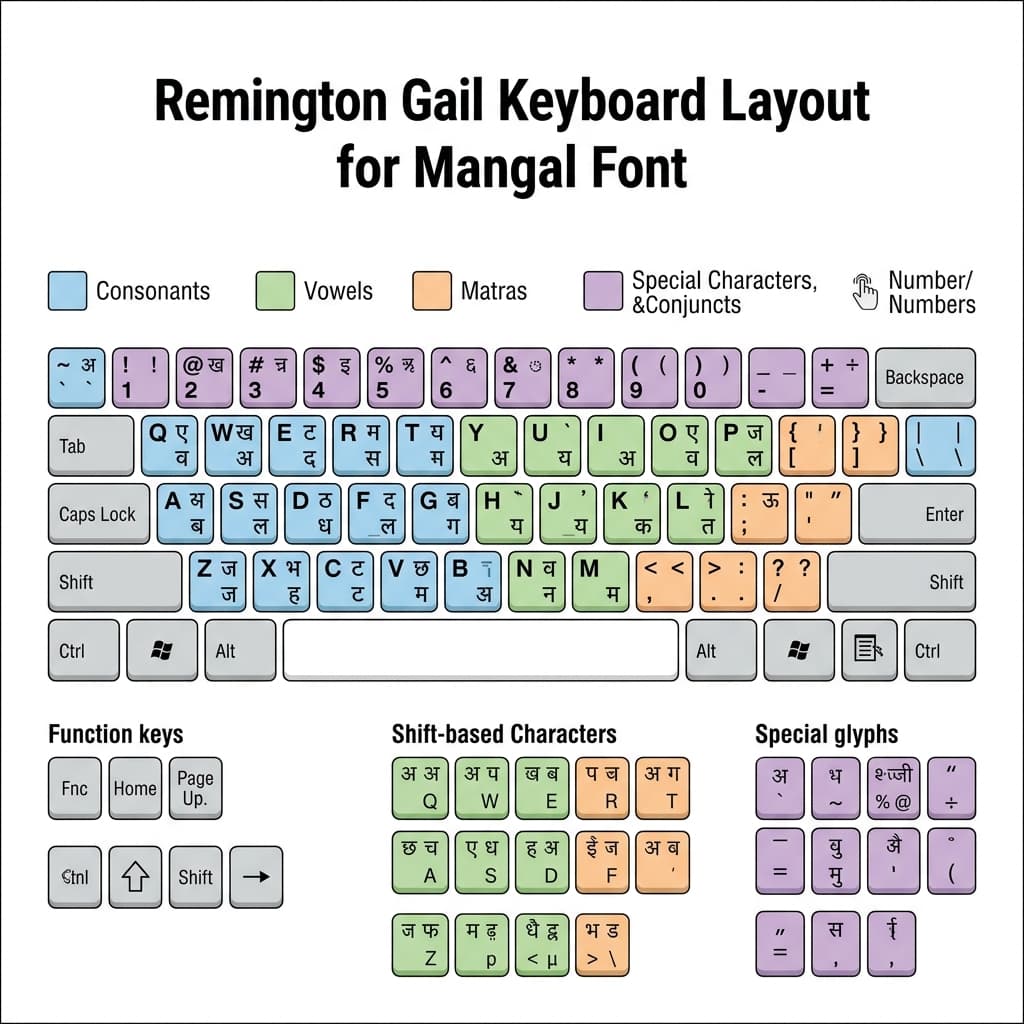
Remington Gail keyboard layout — used in CPCT, CISF, UP Police and other state-level exams.
| Key (Without Shift) | Hindi Character |
|---|---|
| j | र |
| d | क |
| f | ि (I matra — short) |
| k | स |
| l | ल |
| s | म |
| a | ब |
| i | प |
| u | न |
| o | व |
| e | म (variant) |
| h | ा (Aa matra) |
| ; | य |
| g | ह |
| t | ज |
| n | ल (variant) |
| m | ग |
| Key (With Shift) | Hindi Character |
|---|---|
| K | ष |
| D | ख |
| J | ट |
| F | ई |
| H | भ |
| A | ध |
InScript Keyboard Layout Reference
InScript is the official government layout and the key positions follow a logical Devanagari grouping — vowels, consonants, and matras are arranged in phonetic zones. Here are the most important keys:
| Key (Without Shift) | Hindi Character |
|---|---|
| a | ा (Aa matra) |
| i | ि (I matra short) |
| u | ु (U matra short) |
| e | े (E matra) |
| o | ो (O matra) |
| k | क |
| g | ग |
| j | ज |
| p | प |
| b | ब |
| m | म |
| n | न |
| y | य |
| r | र |
| l | ल |
| v | व |
| s | स |
| h | ह |
| d | द |
| t | त |
| / | ् (Halant) |
| Key (With Shift) | Hindi Character |
|---|---|
| I (Shift+i) | ी (I matra long) |
| U (Shift+u) | ू (U matra long) |
| K (Shift+k) | ख |
| G (Shift+g) | घ |
| J (Shift+j) | झ |
| P (Shift+p) | फ |
| B (Shift+b) | भ |
InScript has a logical structure — vowels are on the right side of the keyboard and consonants on the left. Once you learn the zone logic, typing speed builds quickly.
Which Keyboard Should You Learn — InScript or Remington Gail?
This depends entirely on which exam you are targeting. Check your exam notification carefully.
- Choose InScript if your exam is: SSC CHSL, SSC CGL Data Entry, RRB NTPC, UPSC Steno, or any central government recruitment where the notification says "Hindi Inscript" or "Unicode InScript."
- Choose Remington Gail if your exam is: CPCT (Madhya Pradesh), CRPF, CISF, BSF, UP Police Computer Operator, or any exam notification that specifically mentions "Remington Gail" or "Remington CBI."
If your notification says "Mangal font" without specifying the keyboard, contact the recruitment body or check the official exam syllabus document for clarification. Do not assume — keyboard layout selection can affect your score significantly.
If you already know Kruti Dev typing, Remington Gail will feel more familiar and you will adapt faster. If you are learning Hindi typing from scratch, InScript is considered more logical and efficient for long-term speed building.
Speed Requirements for Major Hindi Typing Exams
Knowing the font and keyboard setup is one part of exam preparation. The speed requirement is the other. Here are the standard benchmarks:
- SSC CHSL (LDC/DEO posts) → 35 WPM in English or 30 WPM in Hindi (Mangal InScript)
- SSC CGL (DEO posts) → 8000 keystrokes per hour (approximately 27 WPM)
- CPCT Madhya Pradesh → 30 WPM Hindi, 40 WPM English
- CISF / CRPF → 25 WPM Hindi minimum
- High Court clerical posts → Varies by state, typically 25–35 WPM
- UP Police Computer Operator → 25 WPM Hindi Remington Gail
WPM stands for words per minute where one word is counted as 5 keystrokes. Most exam authorities also apply an accuracy threshold — typically 95% or higher accuracy. Errors beyond the allowed threshold result in deduction from the gross speed to calculate net speed.
Practice daily with a timer and track both your WPM and your accuracy percentage. A candidate with 28 WPM and 98% accuracy will perform better in the final score than one with 32 WPM and 90% accuracy in most scoring systems.
How Mangal Font Connects to the Shree Lipi Workflow
If you work in Marathi DTP or convert between Unicode and legacy Marathi fonts, you may already be familiar with Shree Lipi fonts. Mangal covers Hindi Devanagari in Unicode just as Shree Lipi covers Marathi printing in the legacy font world.
For anyone who needs to move between Unicode Marathi or Hindi text and Shree Lipi legacy format, the Unicode to Shree Lipi Converter handles this conversion instantly — paste your Unicode text, get Shree Lipi-encoded output ready for PageMaker or CorelDraw.
Similarly, if you work with Unicode text for AMS calligraphy fonts — for wedding cards, banners, or artistic design — the Unicode to AMS Converter lets you convert your Mangal-typed Unicode text directly into AMS encoding. This is the most efficient workflow for designers who type in Unicode but need AMS calligraphy output for print design.
For more details on legacy workflows, you can check our PageMaker Unicode to Legacy Guide or our AMS Keyboard Layout Guide.
Common Problems and Fixes
I installed Mangal font but I am still typing in English.
Solution: You installed the font file but did not set up the keyboard input method. The font only controls display — you need to add Hindi InScript or Hindi Remington Gail keyboard in Windows Settings, and then switch to it using Windows Key + Spacebar before typing. Without the keyboard input method active, your keystrokes will produce English characters regardless of which font is selected.
Hindi InScript keyboard does not appear in my Windows Settings.
Solution: You need to first add Hindi (India) as a language under Settings > Time & Language > Language > Add a language. InScript is only listed as a keyboard option after the Hindi language pack is installed. The language pack download requires an internet connection.
I cannot find Hindi Remington Gail in the keyboard list even after installing Indic Input 3.
Solution: This is a known issue on some Windows 11 builds where Microsoft has removed older Indic input support. Restart Windows after installing Indic Input 3 and check again. If it still does not appear, download Keyman Desktop from keyman.com, install the Hindi Remington Gail keyboard pack for Keyman, and use it as an alternative.
Text appears correct on screen but prints as boxes.
Solution: The printer is substituting a different font during printing. In MS Word, go to File > Print > Printer Properties and look for a font embedding or substitution setting. Try printing to PDF first using Microsoft Print to PDF, then print the PDF. This usually preserves the Mangal font correctly.
Mangal font text shows boxes in Gmail or on a website.
Solution: This should not happen since Mangal is Unicode and all modern browsers support Devanagari rendering natively. If you see boxes, it may be a browser rendering issue. Clear browser cache, update your browser, or check if the website has a custom font override. Try copying the text and pasting into a different application to verify the text is correctly encoded.
My typing speed in Mangal is much slower than in Kruti Dev.
Solution: This is normal for the transition period. The key positions in InScript or Remington Gail are different from the Kruti Dev layout you are familiar with. Consistent daily practice of at least 30 to 45 minutes will rebuild your muscle memory within three to six weeks. Track your WPM and accuracy after each session to monitor improvement. Most candidates who commit to daily practice reach their previous Kruti Dev speed within 4 to 6 weeks.
Wrong characters appearing when I type — letters are off by one.
Solution: Your keyboard input is switching between English and Hindi randomly. This happens when AutoSwitch is enabled or when the system has multiple input methods. Make sure you consciously switch to Hindi using Windows Key + Spacebar before starting to type Hindi, and do not press this combination accidentally during typing. Some candidates disable all other input methods in Windows Settings to avoid accidental switching.
Conclusion
Getting Mangal font set up correctly on your computer is the essential first step for any Hindi typing exam preparation. The font itself is free, lightweight, and either already on your system or downloadable in minutes. If you also need other fonts, check out our Chanakya Font Download Guide.
The critical piece that most candidates miss is the keyboard input method. Remember — the font is the display, the keyboard layout is the input. You need both working together. For SSC and central government exams, set up Hindi InScript through Windows Settings — no downloads needed. For CPCT, CISF, UP Police, and other state-level exams, install Microsoft Indic Input 3 and enable the Remington Gail keyboard.
Once your setup is complete, the only thing between you and exam success is consistent daily practice. Track your WPM and accuracy every session, and aim to comfortably exceed the required speed threshold before your exam date.
If your workflow also involves converting Unicode Hindi text to Shree Lipi legacy fonts for Marathi DTP work, or converting Unicode to AMS format for calligraphy design, both tools are available free at unicodetoshreelipi.com.
Bookmark this guide and refer back to it whenever you set up a new system or help someone else prepare for their typing exam.
Frequently Asked Questions
Ready to convert? Our main tool handles Unicode ↔ Shree Lipi with the same accuracy and speed — instantly in your browser.
Try Unicode ↔ Shree Lipi Converter