Chanakya Font Free Download – Complete Guide for Hindi Typing & DTP
If you work in Hindi DTP, newspaper publishing, book typesetting, or any kind of print media in India, Chanakya font is a name you already know. It has been the backbone of Hindi printing for over three decades. Used in newspapers, government gazettes, book publishers, and printing presses across the country, Chanakya remains one of the most trusted legacy fonts in Indian typography.
This guide covers everything you need — what Chanakya font is, all available variants, how to download and install it for free, how to use it in PageMaker and CorelDraw, and the complete keyboard layout reference.
Table of Contents
What Is Chanakya Font?
Chanakya is a non-Unicode legacy Hindi font developed by Summit Information Technologies Limited. It was first released in the early 1990s and quickly became the standard font for Hindi newspaper publishing and DTP work across India.
The font is named after the ancient Indian scholar and strategist Chanakya, who is regarded as one of the greatest thinkers in Indian history. The font carries that same sense of classical elegance — its Devanagari letterforms are clean, readable, and optimized for print.
Chanakya font contains approximately 227 glyphs covering standard Devanagari characters, common conjuncts, and special symbols used in Hindi, Marathi, Sanskrit, and Nepali. The font file is in TrueType (.ttf) format and works on Windows, macOS, and Linux.
Like all legacy fonts, Chanakya uses a custom ASCII-based character mapping. This means the font maps Hindi characters to English keyboard keys rather than using the international Unicode standard. This is why Chanakya text appears as random English characters when opened on a system without the Chanakya font installed — the characters are encoded correctly, but they need the Chanakya font to be rendered visually.
NCERT, India's national educational publisher, historically typeset Hindi and Sanskrit textbooks using Chanakya and its Walkman variants, making it one of the most recognized Hindi fonts in the country. Chanakya Regular alone has been downloaded over 4.5 lakh times from Hindi font repositories, with an average user rating of 4.56 out of 5.
All Chanakya Font Variants — Which One Do You Need?
The Chanakya font family has several variants. Knowing which one to use matters because each variant has its own internal character mapping, and mixing up variants leads to garbled text.
Chanakya Regular
This is the original and most widely used version. Created by Summit Information Technologies, it is the standard for Hindi newspaper columns and book publishing. If you are not sure which variant your workflow uses, start with Chanakya Regular. It is free to download and compatible with all major DTP software.
Walkman Chanakya 901
This is a repackaged version of Chanakya Regular distributed under the "Walkman" label. The glyph shapes and keystroke mappings are identical to Chanakya Regular. Many print shops use Walkman Chanakya 901 in their existing PageMaker and CorelDraw templates simply because it came bundled with older DTP software collections. If your press already uses this variant, continue with it for consistency.
Walkman Chanakya 902
Another Walkman-branded version of the core Chanakya glyph set. Distinguished mainly by its filename and minor internal version metadata. Functionally very similar to 901. Used in some print environments for backward compatibility with older files.
Walkman Chanakya 905
A popular variant among newspaper sub-editors and DTP operators. Walkman Chanakya 905 uses the same base ASCII mapping as Chanakya Regular and 901. It is described as a refined version with slightly better rendering at smaller point sizes — making it a preferred choice for newspaper body text where the font needs to look sharp even at 8pt or 9pt.
AMS Chanakya Calligraphy
A contemporary reinterpretation of the Chanakya style created by ArtoMania Studio. This variant blends classical Devanagari forms with calligraphic styling — bold strokes and ornamental details that make it ideal for branding, artistic headings, wedding cards, and poster design. It is not a substitute for the standard Chanakya for body text, but it is excellent for display typography.
Quick Reference — Which Variant to Use:
- Newspaper body text and columns: Walkman Chanakya 905 or Chanakya Regular
- PageMaker templates already using 901: Walkman Chanakya 901
- Book publishing and formal typesetting: Chanakya Regular
- Artistic headings and branding: AMS Chanakya Calligraphy
- Government documents: Chanakya Regular or Walkman Chanakya 901
How to Download Chanakya Font Free
Chanakya Regular and all Walkman Chanakya variants (901, 902, 905) are available for free download at unicodetoshreelipi.com/fonts. The page has verified, virus-free downloads for all major legacy Hindi fonts, including all Chanakya variants — Chanakya Regular, Walkman Chanakya 901, Walkman Chanakya 902, and Walkman Chanakya 905 — all in one place.
All font files have been verified as virus-free. The file size is small — typically between 40KB and 80KB per variant.
How to Install Chanakya Font On Windows (10 and 11)
Method 1 — Right Click Install (Easiest)
- Download the Chanakya .ttf file to your computer.
- Open the folder where the file was downloaded.
- Right-click on the font file.
- Click "Install" from the context menu.
- If Windows asks for permission, click Yes.
- The font is now installed. You can verify by opening any application and checking the font list for "Chanakya" or "Walkman Chanakya".
Method 2 — Copy to Fonts Folder
- Download the Chanakya .ttf file.
- Open File Explorer and navigate to
C:\Windows\Fonts. - Copy the downloaded font file and paste it directly into the Fonts folder.
- Windows installs it automatically. No restart needed.
Method 3 — Control Panel
- Open Control Panel on your computer.
- Go to Appearance and Personalization, then click Fonts.
- Drag and drop the downloaded Chanakya .ttf file into the Fonts window.
- The font will install immediately.
After installation, open Microsoft Word or any other application, scroll through the font list, and you should see "Chanakya" or "Walkman Chanakya 901" listed. If it does not appear, restart the application.
How to Install Chanakya Font On Mac
- Download the Chanakya .ttf file to your Mac.
- Open the downloaded file by double-clicking it.
- A font preview window will open. Click "Install Font" at the bottom of the window.
- The font is now available in all Mac applications.
How to Install Chanakya Font On Linux
- Download the Chanakya .ttf file.
- Copy the file to
/usr/share/fonts/for system-wide installation, or to~/.fonts/for your user account only. - Run the command:
fc-cache -fv - The font is now available in all Linux applications.
Chanakya Font Keyboard Layout — Key Mapping Guide
Chanakya font uses the Remington typewriter keyboard layout for typing. This is the same layout used by Kruti Dev and most other legacy Hindi fonts. If you already know Kruti Dev typing, you can type in Chanakya without learning anything new.
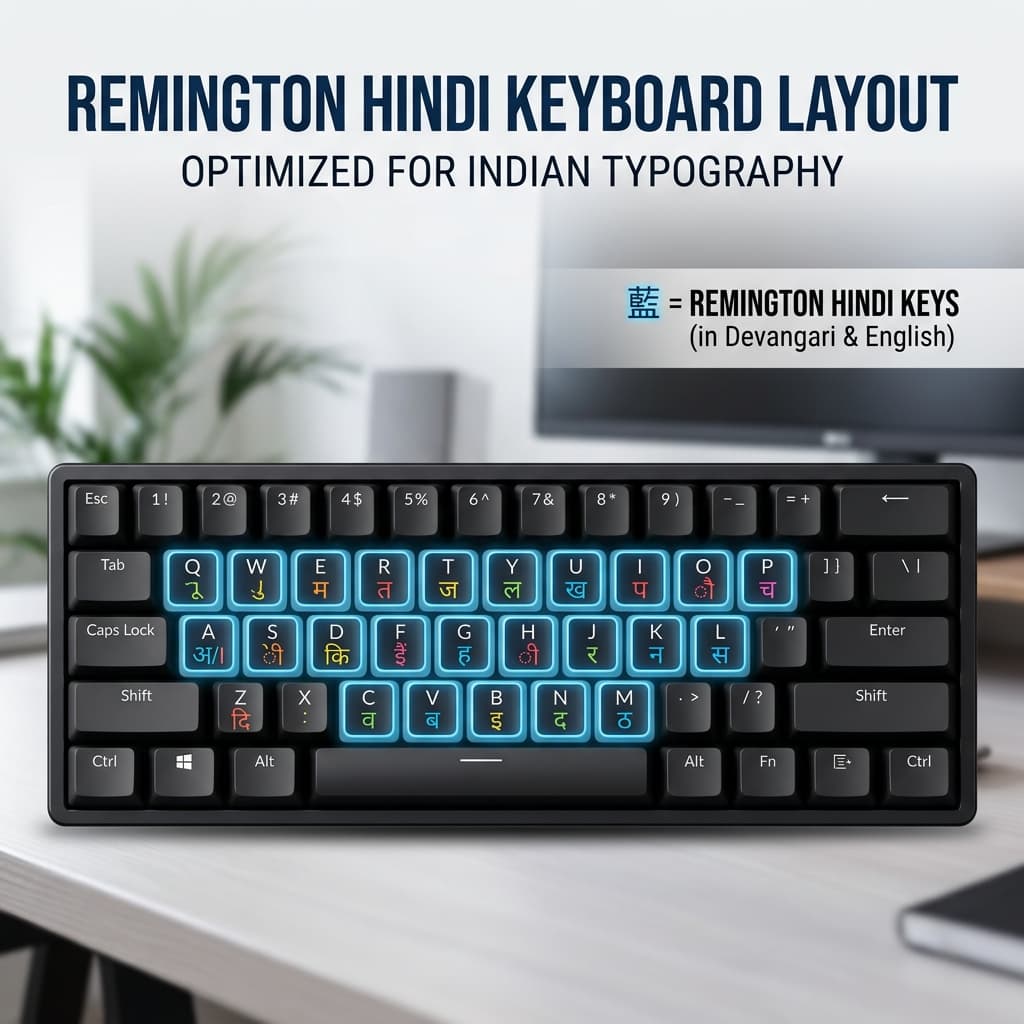
For those who are new to the Remington layout, here are the most important key mappings:
| Key | Output (Chanakya) | Key | Output (Chanakya) |
|---|---|---|---|
d | क | D | ख |
x | ग | X | घ |
fp | च | Fp | छ |
t | ज | T | झ |
. | ट | > | ठ |
M | ड | MH | ढ |
.k | त | -d | ण |
Important Note on Matras:
In Chanakya, some matras are typed before the consonant in some cases — this is because the font's internal encoding places the matra glyph at a specific ASCII position that appears visually before the letter even though it is typed after. This is a common source of confusion for beginners. With practice, the sequence becomes automatic.
If you prefer to avoid the Remington layout entirely, you can type your text directly in PageMaker or CorelDraw using the key mapping chart provided above. With a few days of practice, the layout becomes second nature and your typing speed increases significantly.
Using Chanakya Font in PageMaker
Chanakya is one of the most compatible legacy fonts for Adobe PageMaker 6.5 and 7.0. Since both the font and the software follow the same ASCII-based approach, text rendering is reliable and consistent.
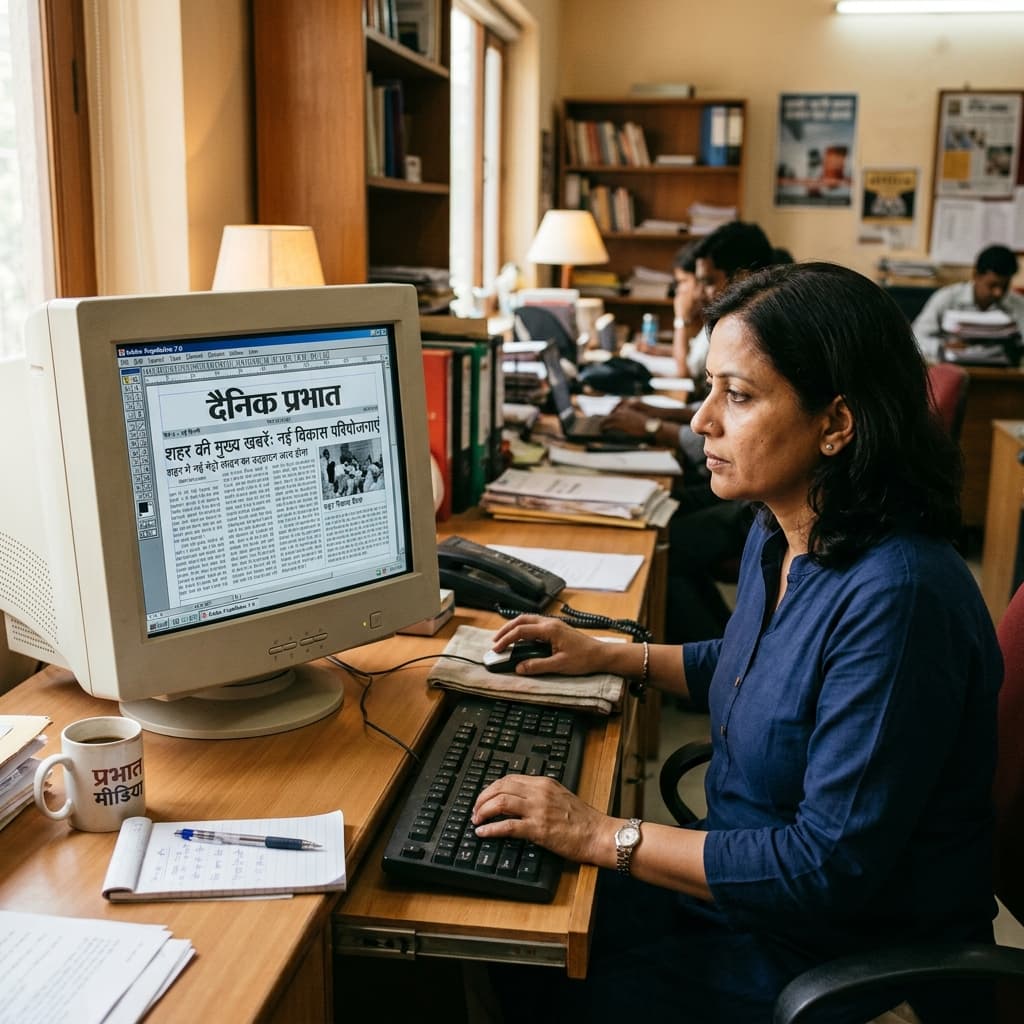
To use Chanakya in PageMaker:
- Make sure the Chanakya font is installed on your Windows system before opening PageMaker.
- Open PageMaker. Create a text box using the text tool.
- In the font dropdown at the top, select Chanakya or Walkman Chanakya 901 depending on which variant you installed.
- Now type directly using the Remington keyboard layout. Every key you press will display the corresponding Hindi character through the Chanakya font.
- If you are pasting text from another source, make sure it is already in Chanakya encoding — not Unicode.
Pro Tip for Newspaper Layouts:
Chanakya Regular at 9pt with 11pt line spacing produces clean, readable newspaper columns. Many Hindi daily newspapers have used exactly this setting for decades.
Using Chanakya Font in CorelDraw
Chanakya works in CorelDraw, but with one important caveat — newer versions of CorelDraw (2017 and later) have improved Unicode support, which can sometimes interfere with legacy font rendering. For best results, use CorelDraw X4 or X7 for Chanakya-based workflows.
To use Chanakya in CorelDraw:
- Install the Chanakya font on your system.
- Open CorelDraw and select the Text tool.
- Click on the canvas and select Chanakya from the font dropdown before typing.
- Type using the Remington layout. The Hindi characters will appear correctly.
- If CorelDraw's AutoCorrect is replacing your text, disable it. Go to Tools > AutoCorrect Options and turn off autocorrection. This is a common issue when typing legacy Hindi fonts in CorelDRAW.
- If you are pasting Chanakya-encoded text from a converter, paste it first and then immediately apply the Chanakya font. Do not apply the font before pasting.
Chanakya vs Kruti Dev — Which One Should You Use?
This is the most common question among Hindi DTP beginners. Both are legacy non-Unicode fonts used in PageMaker and print workflows. Here is the practical difference:
Chanakya is the preferred font for newspaper and book publishing. Its letterforms are slightly more refined, and it renders well at small point sizes — making it ideal for newspaper columns where you need clarity at 8pt or 9pt. Most Hindi newspaper presses prefer Chanakya or its Walkman variants.
Kruti Dev is the preferred font for government typing, exam preparation, and general office work. The SSC, UPSC, and most state government typing tests specify Kruti Dev 010. Government offices, court documents, and official correspondence in Hindi predominantly use Kruti Dev.
Common Problems and Fixes
Problem: Font installed but not showing in PageMaker or CorelDraw.
Fix: Restart the software after installing the font. If it still does not appear, restart Windows. In some cases, font cache needs to be cleared — delete the FNTCACHE.DAT file from C:\Windows\System32\ and restart.
Problem: Text appears as boxes or question marks in PageMaker.
Fix: The Chanakya font is not installed on the system. Install it and restart PageMaker. Then, verify the font is selected in the text box.
Problem: Matras are appearing in the wrong position.
Fix: This usually happens when the wrong variant is applied. Make sure the variant in the font dropdown exactly matches the variant used in the original document. Mixing Chanakya Regular with Walkman Chanakya 901 in the same document can cause this.
Problem: AutoCorrect is changing Hindi text in Word or CorelDRAW.
Fix: Disable AutoCorrect completely before typing in legacy font mode. In MS Word, go to File > Options > Proofing > AutoCorrect Options and turn it off. In CorelDraw, go to Tools > AutoCorrect Options.
Problem: Text pasted from another source looks wrong after applying the font in PageMaker.
Fix: Make sure the source text was typed using the correct Chanakya Remington layout. Text typed in Unicode or in a different legacy font encoding will not render correctly even with the Chanakya font applied. Always type directly in the Chanakya layout for best results. Paste first, select all, then apply the font.
Conclusion
Chanakya font has earned its reputation over three decades of Hindi printing. Whether you are laying out a newspaper page, typesetting a book, or designing official documents for a government press, Chanakya delivers reliable, clean Devanagari typography that the Indian printing industry has trusted since the 1990s.
Download the font free from unicodetoshreelipi.com/fonts, install it in two clicks, and you are ready to go. Bookmark this page for reference whenever you need to set up Chanakya on a new system.
Frequently Asked Questions
Ready to convert? Our main tool handles Unicode ↔ Shree Lipi with the same accuracy and speed — instantly in your browser.
Try Unicode ↔ Shree Lipi Converter