DigiLocker Password, PIN and Username Reset — Complete 2026 Guide
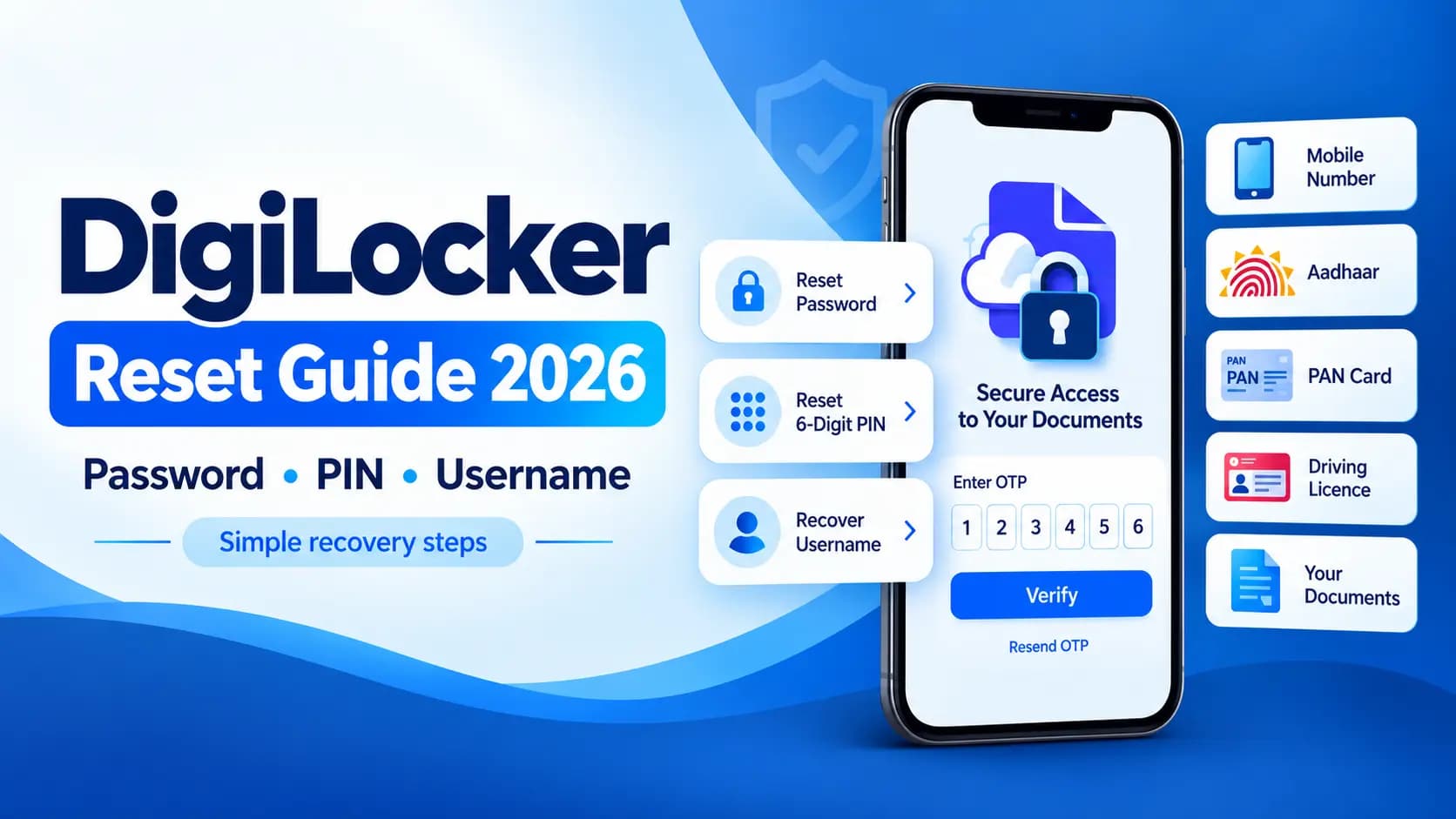
You need your Aadhaar or driving licence urgently, you open DigiLocker — and it asks for a 6-digit security PIN you can't remember. Or the OTP goes to a mobile number you stopped using two years ago. If you've hit either of these walls, you're in the right place.
DigiLocker is a Government of India platform under the Ministry of Electronics and Information Technology (MeitY), part of the Digital India programme, and it holds some of the most important documents Indian citizens need — Aadhaar, PAN, driving licence, vehicle RC, and board mark sheets. Losing access to it is stressful, but every single recovery path is simple once you know which one applies to you.
Table of Contents
First, Understand What You Actually Forgot
DigiLocker uses two separate credentials, and mixing them up is the most common source of confusion.
Your password is what you use to log in to your account. Your 6-digit security PIN is a separate layer used to access and open your stored documents. Forgetting one has no effect on the other — so identify which one is actually blocking you before starting any reset process.
And here's the detail that saves a lot of people time: you no longer need a username to log in at all. You can sign in using your registered mobile number or Aadhaar number instead, with an OTP.
Key Takeaways — DigiLocker Credentials
- Password — used to sign in to your DigiLocker account
- Security PIN (6-digit) — used to open and view your stored documents
- Resetting one does not affect the other
- Username is no longer required — mobile number or Aadhaar works instead
How to Reset Your DigiLocker Security PIN
Open the DigiLocker app or go to the official website, and on the login screen, tap "Forgot Security PIN".
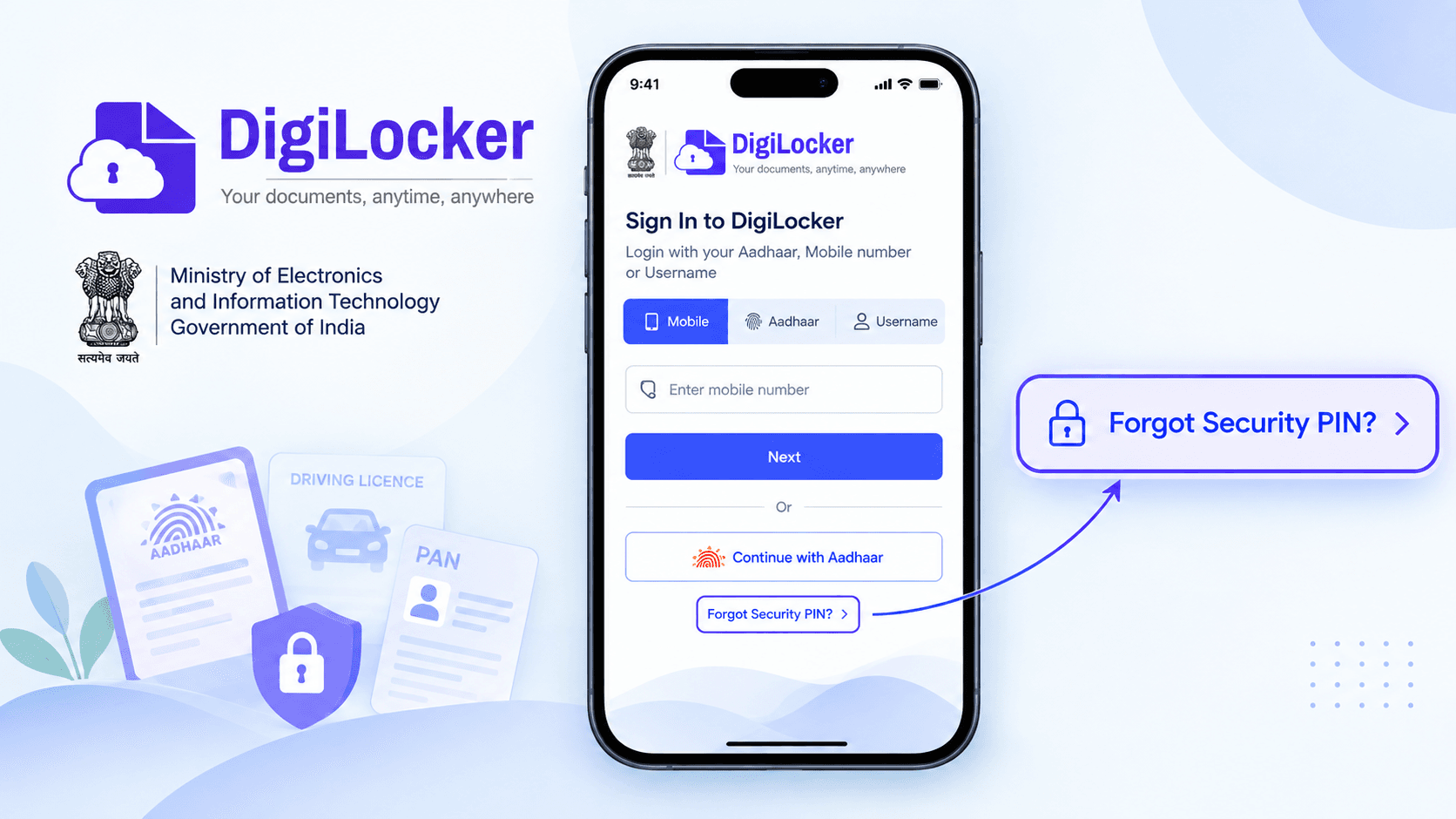
The "Forgot Security PIN" option appears on the DigiLocker login screen — tap it to begin the reset.
Choose how you want to verify your identity — you can use your mobile number, Aadhaar, PAN, or driving licence. Enter the details for whichever method you picked.
An OTP will be sent to your registered mobile number. Enter it and tap Verify.
Once verified, you can immediately create a new 6-digit security PIN. Confirm it once more, and the reset takes effect instantly.
| Step | Action |
|---|---|
| 1 | Open DigiLocker app or website → tap "Forgot Security PIN" |
| 2 | Choose verification method: mobile number, Aadhaar, PAN, or driving licence |
| 3 | Enter the OTP sent to your registered mobile number |
| 4 | Set a new 6-digit PIN → confirm it → done |
How to Reset Your DigiLocker Password
Visit the official DigiLocker website and click Sign In, then select "Forgot Password".
Enter your registered mobile number or Aadhaar number to begin verification. An OTP will arrive on your registered mobile number — enter it to proceed.
You'll then be asked to set a new password. Make it at least 8 characters, mixing uppercase and lowercase letters, numbers, and symbols. Re-enter it to confirm and submit.
Tip: A strong DigiLocker password uses at least 8 characters and combines uppercase letters, lowercase letters, numbers, and symbols. Avoid using your date of birth or Aadhaar digits as any part of the password.
How to Recover Your DigiLocker Username
The simplest answer here is that you probably don't need it. DigiLocker no longer requires a username to log in — just type your registered mobile number or Aadhaar number in the username field, verify with an OTP, and you'll be signed in.
If you still want to retrieve the username itself, open the DigiLocker app or website, choose the "Forgot Username" option, enter your registered mobile number, and verify the OTP sent to it. Your username will then be displayed on screen — note it down somewhere safe.
Note: DigiLocker provides 1 GB of cloud storage to every Aadhaar holder — linked one-to-one with your Aadhaar number. Only one account is permitted per Aadhaar, so recovery is always possible through the options above.
What If Your Old Mobile Number No Longer Works?
This is the single most common DigiLocker problem, and it does have a proper solution.
On the OTP page, scroll to the bottom and look for "Try using Aadhaar OTP instead". Selecting this sends the OTP to your Aadhaar-registered mobile number through UIDAI instead of your old DigiLocker-registered number. Enter that OTP along with the captcha, and you'll be logged in.
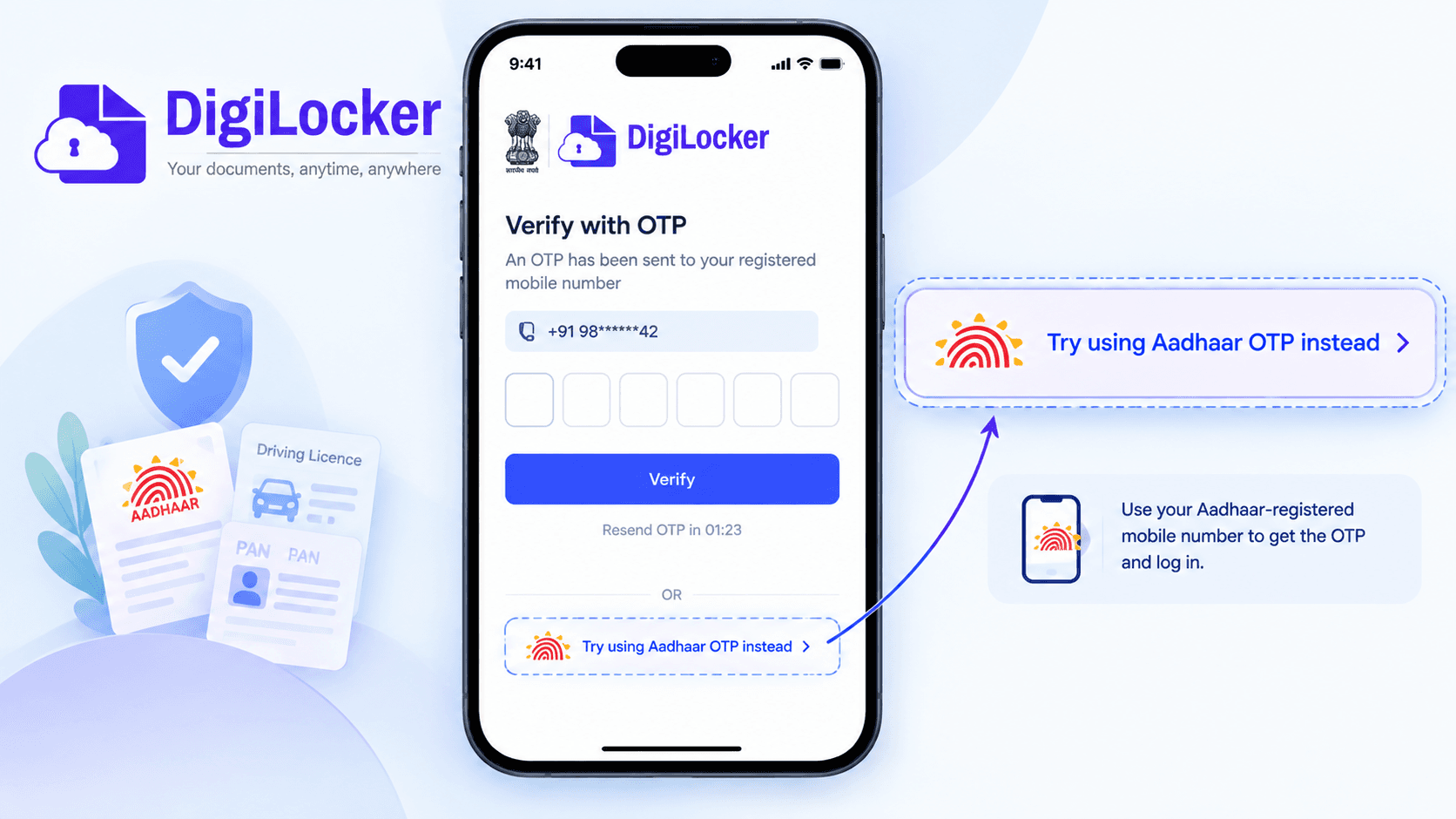
Scroll to the bottom of the OTP page — the "Try using Aadhaar OTP instead" option sends a fresh OTP via UIDAI to your Aadhaar-linked number.
Once you're inside, go straight to your profile section and tap the pencil icon next to your mobile number. Enter your current number, submit, and verify the OTP sent to it. Your DigiLocker mobile number is now updated — and you won't face this problem again.
Important:This only works if your Aadhaar is linked to an active mobile number. If your Aadhaar-linked number is also outdated, you'll need to update it with UIDAI first, then return to DigiLocker.
| Situation | Solution |
|---|---|
| Forgot security PIN | Tap "Forgot Security PIN" → verify OTP → set new PIN |
| Forgot password | Click "Forgot Password" → verify OTP → set new password |
| Forgot username | Use mobile number or Aadhaar instead — username not needed |
| Old mobile number no longer active | Use "Try using Aadhaar OTP instead" → log in → update mobile in profile |
| Aadhaar-linked number also inactive | Update mobile with UIDAI first → then use DigiLocker recovery |
Common Mistakes to Avoid
- Confusing the security PIN (6-digit, for documents) with the password (for login) — they are reset separately
- Trying to create a second DigiLocker account — only one account per Aadhaar is allowed
- Sharing your OTP or PIN with anyone claiming to be DigiLocker support — the official platform never asks for this
- Ignoring the "Try using Aadhaar OTP instead" option — it is the correct fix for an inactive registered mobile number
- Waiting until you urgently need a document to update your registered mobile number — do it the moment you log in
Conclusion
Almost every DigiLocker access problem comes down to one of three things — a forgotten PIN, a forgotten password, or an inactive mobile number — and all three have a built-in fix that takes under five minutes.
The one habit worth building: once you're back in, update your registered mobile number in your profile straight away, and keep your Aadhaar-linked number active. That single step prevents nearly every future lockout.
Frequently Asked Questions
Ready to convert? Our main tool handles Unicode ↔ Shree Lipi with the same accuracy and speed — instantly in your browser.
Try Unicode ↔ Shree Lipi Converter