How to Type Hindi and Marathi in Canva on Mobile (2026 Guide)
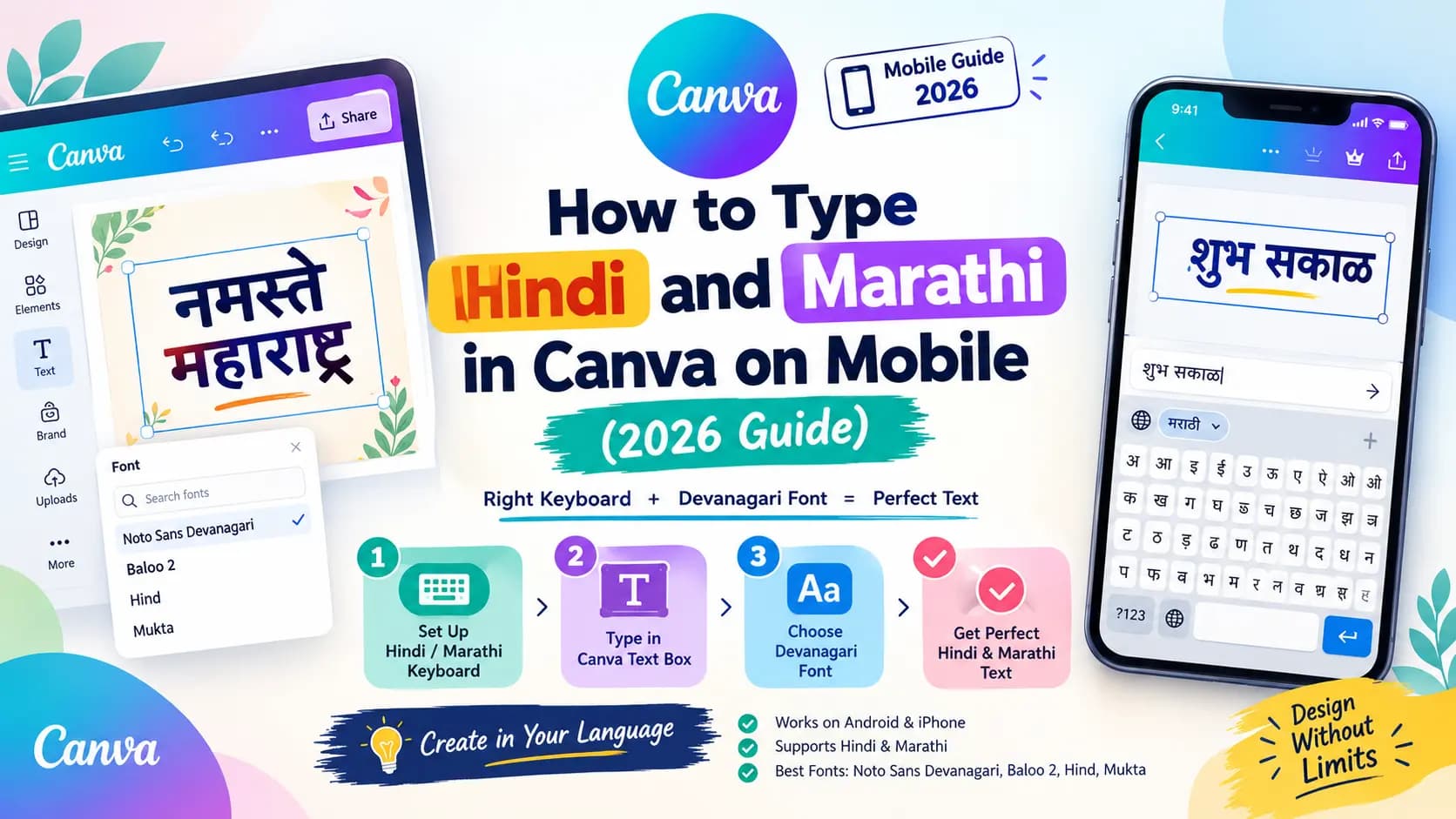
Open Canva on your phone, tap a text box, switch on your Hindi or Marathi keyboard, and type your greeting — but instead of clean Devanagari script, you get empty boxes or missing letters. This is one of the most common frustrations people run into while designing in Canva across India, from Instagram posts to festival greeting cards, and the good news is that it comes down to just two things: your keyboard, and your font.
This guide walks through exactly how to type Hindi and Marathi correctly in the Canva mobile app, and exactly what to check if it still isn't working.
Table of Contents
Why Canva Doesn't Type Hindi or Marathi by Itself
Canva does not have its own built-in Hindi or Marathi keyboard. It relies entirely on your phone's own system keyboard to produce the actual Devanagari characters — Canva just displays whatever your keyboard sends it. So if your phone's keyboard isn't set up for Hindi or Marathi yet, Canva has no way to type it either, no matter how correct your design setup looks otherwise.
This is also why the same problem shows up the exact same way whether you're using Canva, WhatsApp, or Instagram — it's a phone-level setting, not something specific to Canva.
Step 1 — Set Up Hindi or Marathi Typing on Your Phone
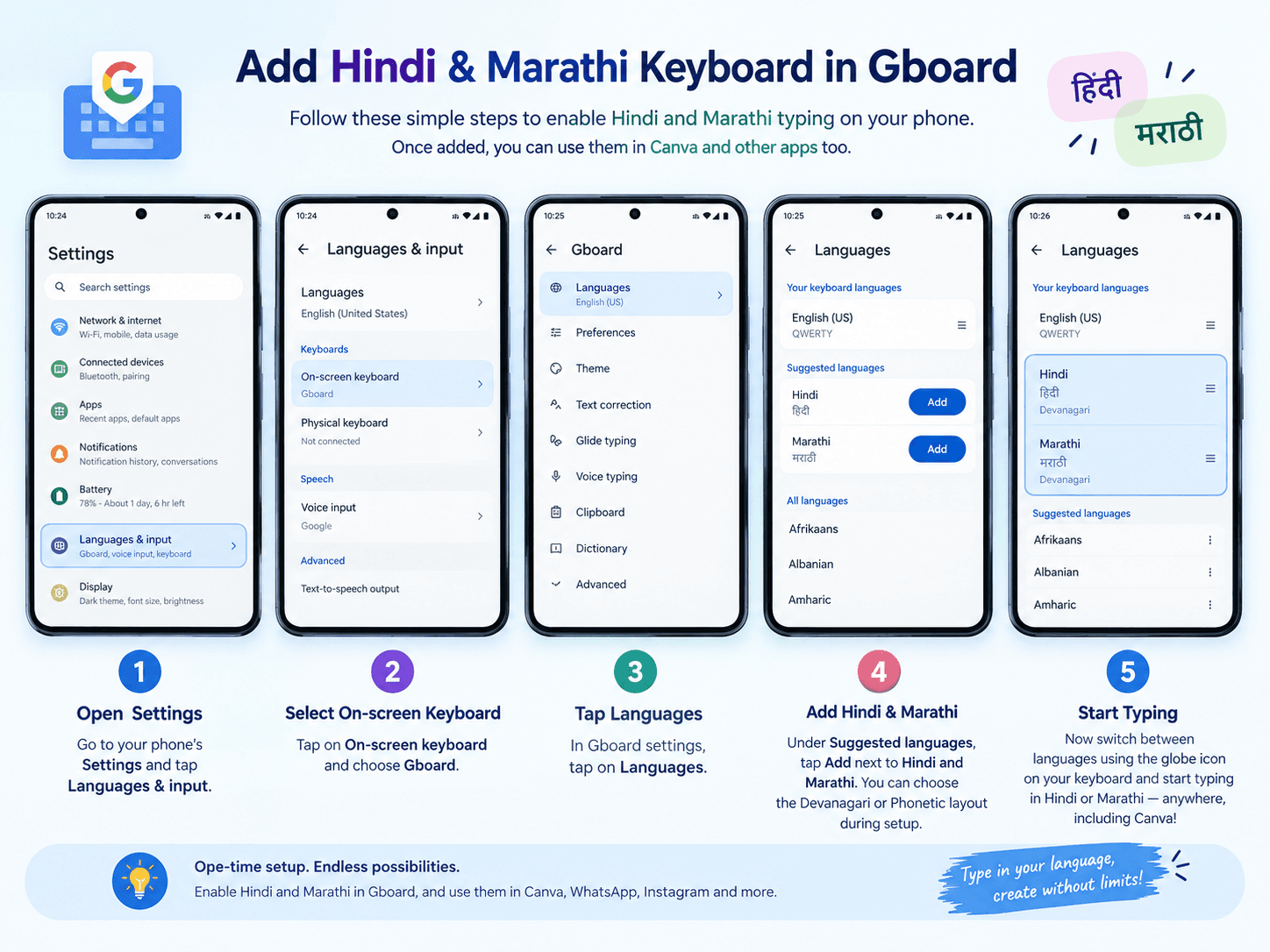
The most reliable way to do this is with Gboard, Google's keyboard app, which is already installed or easily downloadable on almost every Android and iPhone.
Download Gboard from the Play Store or App Store if you don't already have it. Open your phone's Settings, go to Languages & Input, then Virtual Keyboard, and select Gboard. Tap Languages, then Add Keyboard, and choose Hindi or Marathi — you can pick either the Devanagari layout or the Phonetic layout, depending on which one you're comfortable typing with.
Once added, you can switch to Hindi or Marathi from any app, including Canva, by tapping the globe icon on your keyboard.
Step 2 — Type Directly Into Canva's Text Box
Open your Canva project, tap Add Text or select an existing text box, switch your keyboard to Hindi or Marathi using the globe icon, and simply start typing. If you'd rather type phonetically in English and let your keyboard convert it — for example, typing "namaste" and getting "नमस्ते" — Gboard's Hindi and Marathi phonetic layouts support this directly, no separate app needed.
Alternatively, you can type your text using a phonetic tool like unicodetoshreelipi.com and paste the Unicode Devanagari output directly into your Canva text box.
Step 3 — Choose a Font That Actually Supports Devanagari
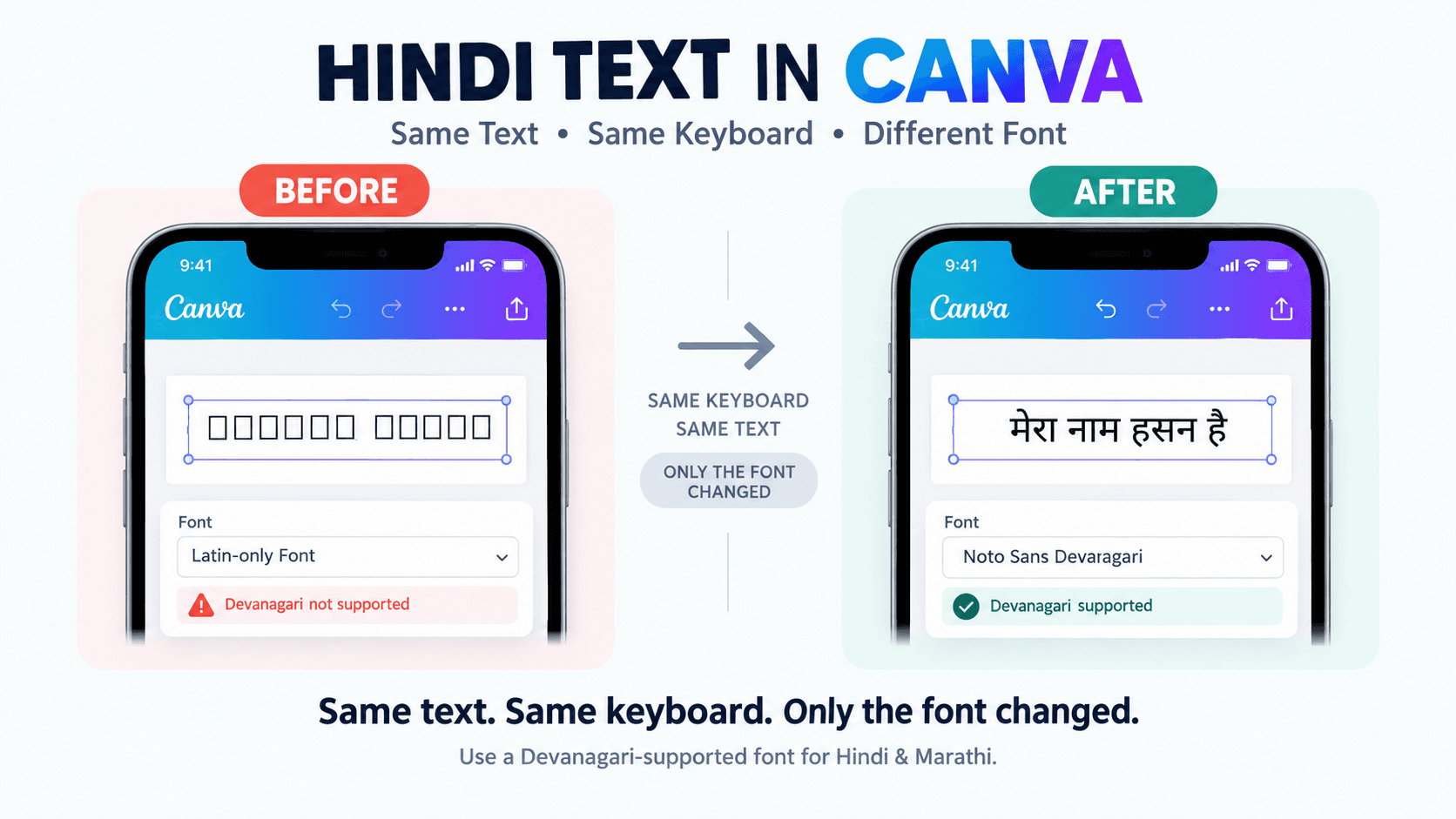
This is the step that trips up the most people, even after typing works perfectly. Not every font available in Canva supports Devanagari script. If your text box is set to a Latin-only font, Hindi or Marathi text will show up as empty boxes or missing characters — even though you typed it correctly.
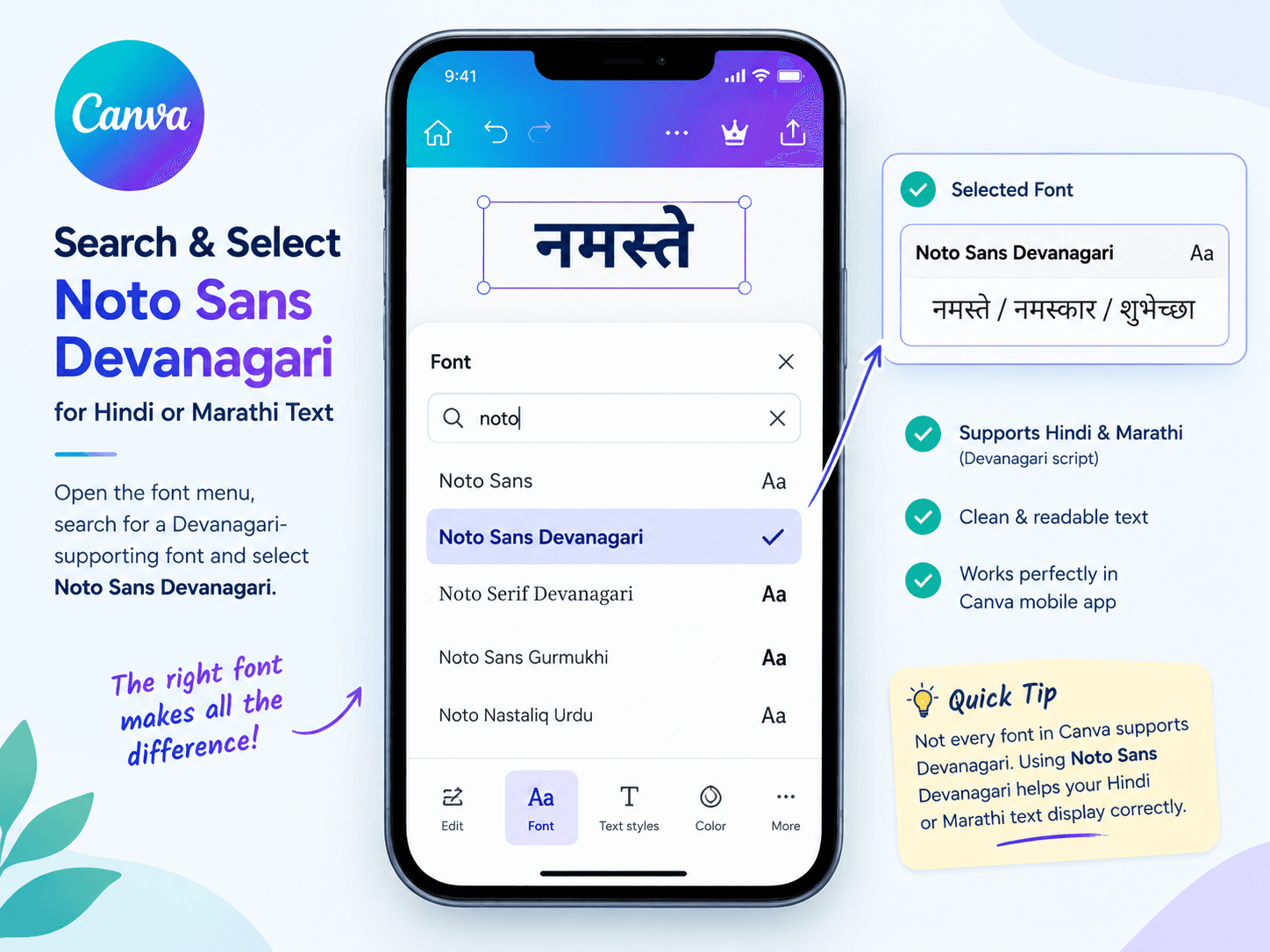
Tap on your text box, open the font menu, and search for a font known to support Devanagari — Noto Sans Devanagari, Baloo 2, Hind, and Mukta are reliable, commonly available choices in Canva's font library. Once selected, your Hindi or Marathi text should display correctly and cleanly.
If you're on Canva Pro and want a more decorative or specific Devanagari style that isn't in Canva's default library, you can upload a custom font file directly into your project. For Hindi DTP workflows that use legacy fonts, see the Adobe InDesign Hindi Typing Guide for a deeper look at font choices and their compatibility.
| Font Name | Available in Canva | Best For |
|---|---|---|
| Noto Sans Devanagari | Yes | Clean body text, social media captions |
| Baloo 2 | Yes | Headings, posters, Instagram graphics |
| Hind | Yes | General Hindi text, readable at small sizes |
| Mukta | Yes | Marathi text, flyers, business cards |
| Custom Upload | Canva Pro only | Decorative or brand-specific Devanagari fonts |
What to Do If It Still Looks Wrong
If your text still shows boxes after switching fonts, double-check that you actually selected a Devanagari-supporting font and not just a similarly named one. If letters look correct individually but conjuncts or matras seem oddly placed, try a different Devanagari font, since rendering quality can vary slightly between them. And if you're pasting text copied from somewhere else rather than typing it directly, make sure the source text was genuine Unicode Hindi or Marathi — text from an old, non-Unicode font source will never display correctly, no matter which Canva font you apply.
For a deeper look at why legacy-encoded text always breaks in modern apps, see PixelLab Tamil & Marathi Typing Guide — the same font-encoding principle applies across all design apps on mobile.
Common Mistakes to Avoid
- Typing with the right keyboard but the wrong font — always switch to a Devanagari-supporting font first.
- Pasting text from a legacy non-Unicode source — old Kruti Dev or Shree Dev encoded text will always show as garbage in Canva.
- Choosing a font by appearance in the font list — scroll past attractive-looking Latin fonts; they won't render Devanagari.
- Forgetting to add the language to Gboard first — the globe icon only shows languages you've already added in Settings.
Key Takeaways
- Canva uses your phone's system keyboard — it has no built-in Hindi or Marathi keyboard of its own.
- Add Hindi or Marathi to Gboard in your phone's Settings, then switch using the globe icon inside Canva.
- Always select a Devanagari-supporting font (Noto Sans Devanagari, Baloo 2, Hind, or Mukta) — Latin fonts will show empty boxes.
- Pasted text must be genuine Unicode Devanagari — text from legacy fonts will never render correctly in Canva.
- Canva Pro users can upload any custom Devanagari font file for brand or decorative use.
Conclusion
Typing Hindi and Marathi in Canva on mobile really comes down to two simple checks: make sure your phone's keyboard is set up for the language through Gboard, and make sure your text box is using a font that actually supports Devanagari script, like Noto Sans Devanagari. Get both of those right, and Hindi and Marathi typing in Canva works exactly as smoothly as typing in English.
If you need to convert existing Hindi or Marathi text from a legacy font format before pasting it into Canva, the Unicode to Shree Lipi Converter at unicodetoshreelipi.com works entirely from your phone's browser — no computer needed.
Related Guides:
Frequently Asked Questions
Ready to convert? Our main tool handles Unicode ↔ Shree Lipi with the same accuracy and speed — instantly in your browser.
Try Unicode ↔ Shree Lipi Converter