Adobe InDesign Hindi Typing Guide (2026)
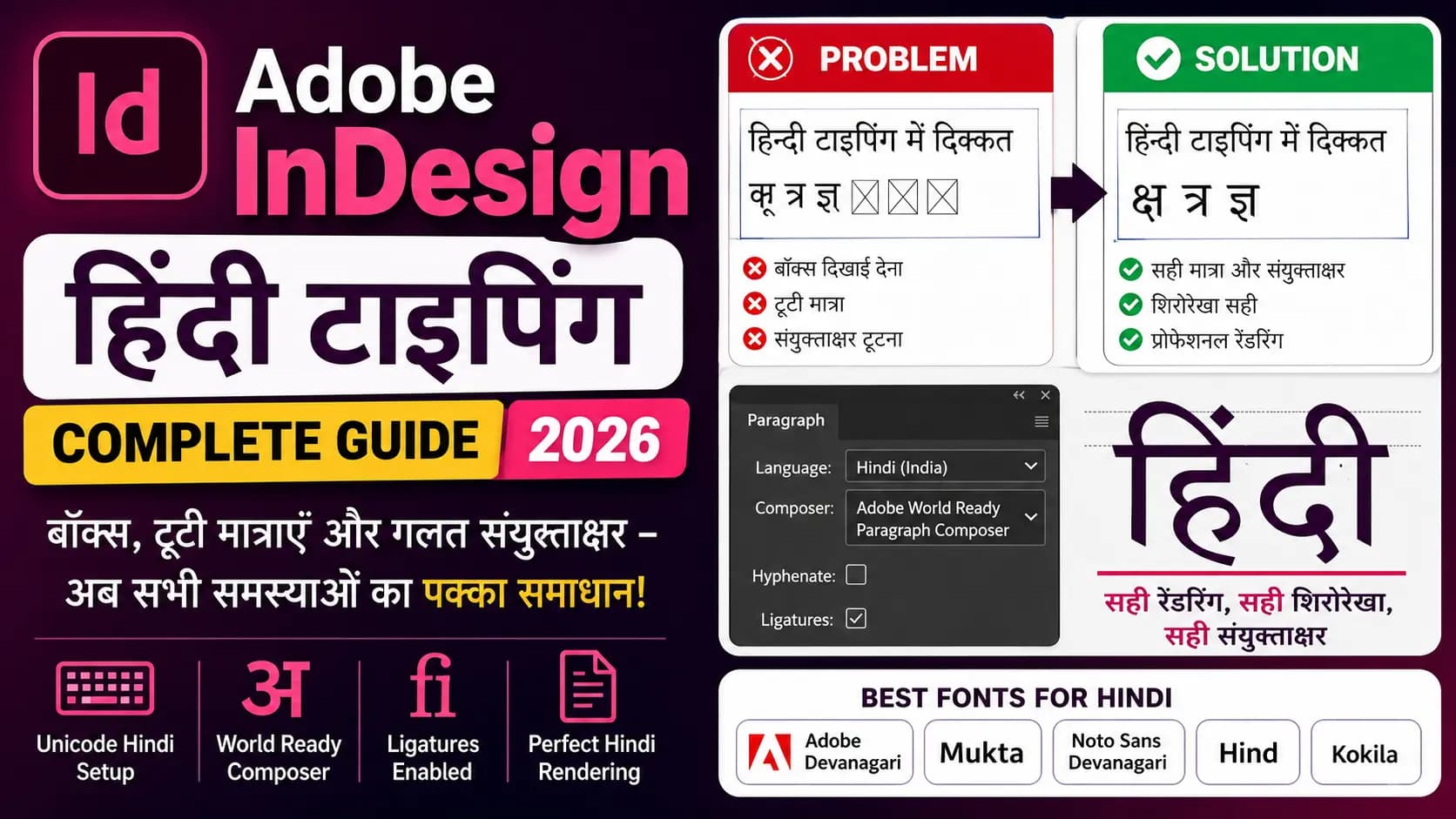
You open InDesign. You paste Hindi text. You see boxes with X in them. Or the conjuncts are breaking apart. In 2024 the file looks broken in InDesign, but in the past the same file looked fine on InDesign 2023.
You are not alone. Hindi rendering in Adobe InDesign is one of the most searched and most frustrating problems in India's graphic design and publishing community — and the reasons are technical, version-specific, and completely fixable once you understand what is actually happening.
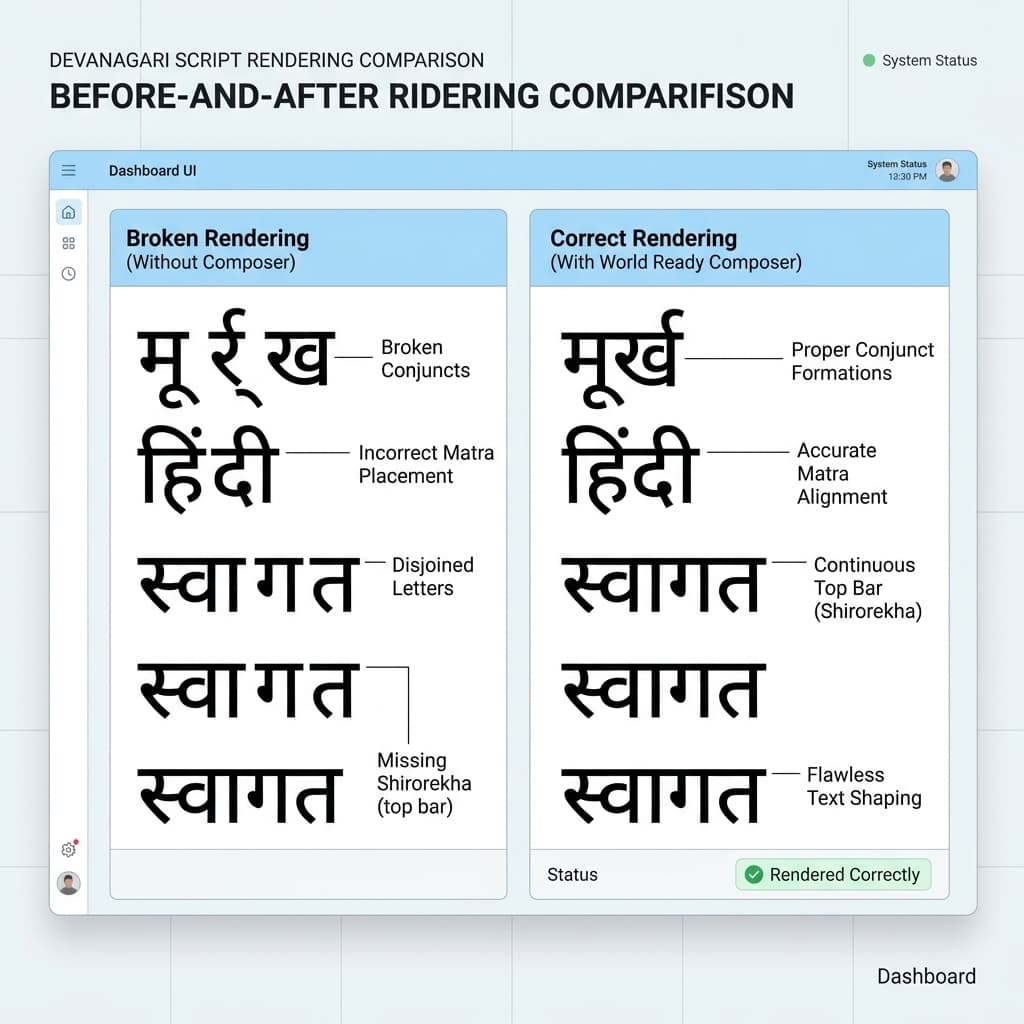
The same Unicode Hindi text. Left: conjuncts broken without World Ready Composer. Right: correctly formed after the fix.
Table of Contents
- Why InDesign and Hindi Have a Complex Relationship
- Part 1 — Unicode Hindi in InDesign: Complete Setup
- Part 2 — Shree Lipi Legacy Fonts in InDesign
- Unicode vs Shree Lipi in InDesign — Which Should You Use?
- Part 3 — The InDesign 2024/2025 Hindi Bug and How to Fix It
- Part 4 — Complete Font Issue Checklist
- Best Fonts for Hindi in InDesign 2026
- Workflow Summary — Choosing the Right Approach
- Conclusion
- Frequently Asked Questions
Why InDesign and Hindi Have a Complex Relationship
Adobe InDesign was originally built for Latin-script typography. Its text composition engine — the system that decides how characters combine, where lines break, and how ligatures form — was designed around the relatively simple rules of Latin text.
Devanagari is fundamentally different. Hindi uses a complex script where consonants carry an inherent vowel, additional vowels are indicated by matras attached above, below, before, or after the consonant, and two or more consonants combine into conjuncts. The horizontal shirorekha line must run continuously across each word. Half-forms appear before consonants in specific positions. None of this complexity exists in Latin typography.
InDesign's solution for this is the Adobe World Ready Paragraph Composer — a separate text composition engine built specifically for complex scripts including Arabic, Hebrew, and Indic languages. This composer must be explicitly enabled for Hindi to render correctly. It is not on by default. And in InDesign 2024 and 2025, additional engine changes created new issues that have disrupted existing Hindi workflows across professional teams.
Understanding this history explains every problem in this guide — and every fix.
Part 1 — Unicode Hindi in InDesign: Complete Setup
This is the correct setup for typing and rendering Unicode Hindi in InDesign. Follow every step. Skipping any one of them causes the exact problems most designers spend hours troubleshooting.
Step 1 — Install a Unicode Devanagari font
InDesign needs a properly built Unicode OpenType font for correct Hindi rendering. Recommended options:
- Adobe Devanagari — Available through Adobe Creative Cloud Fonts. Designed specifically for Devanagari and tested across Adobe applications. Type "Devanagari" in the Adobe Fonts search — not "Hindi," which returns unrelated results.
- Mukta — Available free on Google Fonts. Widely used for Hindi publishing. Available in 7 weights. Tested on InDesign by thousands of Indian designers.
- Noto Sans Devanagari — Google's comprehensive Devanagari font, designed for maximum character coverage. Available free on Google Fonts.
- Hind — Clean, professional Devanagari font available free on Google Fonts. Good for body text.
- Kokila — Included with Windows. A clean Devanagari font that works reliably in InDesign.
Do not use Kruti Dev or Shree Dev fonts for this Unicode workflow. Those are legacy ASCII-based fonts that require a different workflow covered in Part 2 of this guide.
Step 2 — Type your Hindi text in Unicode
Type using Google Input Tools, Microsoft Hindi InScript keyboard (built into Windows Settings), or any Unicode Hindi input method. Alternatively, type phonetically at Google Input Tools (translate.google.com or the standalone input tool) and copy the Unicode output. All modern Hindi text from any digital source — WhatsApp, Google Docs, websites — is already Unicode.
Step 3 — Paste into InDesign
Paste your Hindi text. At this stage, you may see boxes with X, question marks, or garbled characters. Do not panic. This is expected before the correct composer and font settings are applied. Continue with the next steps.
Step 4 — Set up a Paragraph Style with World Ready Composer
This is the most critical step. Go to Window > Styles > Paragraph Styles (or press F11). Click "New Paragraph Style" and name it "Hindi Body" or similar. In the style settings:
- Under Basic Character Formats: select your Unicode Devanagari font (Mukta, Adobe Devanagari, or similar).
- Under Advanced Character Formats: change the Language dropdown from "English" to "Hindi (India)." This step is skipped by almost every tutorial online and is not optional. Without it, InDesign applies English hyphenation and composition rules to Devanagari text.
- Under Hyphenation: uncheck "Hyphenate." Hindi does not use hyphenation — leaving it on causes incorrect line-break behaviour.
- Under Justification: click the Composer dropdown and select "Adobe World Ready Paragraph Composer." This is the engine that handles Devanagari correctly. Without this, conjuncts break, matras misalign, and the shirorekha does not render across words.
Apply this paragraph style to all your Hindi text blocks.
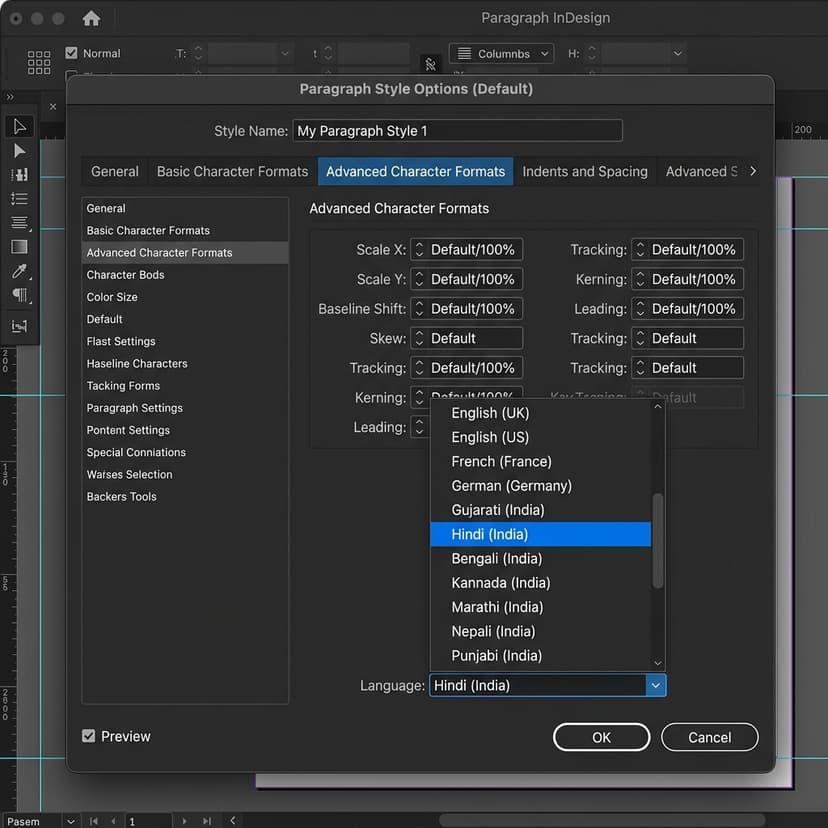
Setting the language to Hindi (India) — not English — is a step most guides skip. It is not optional.
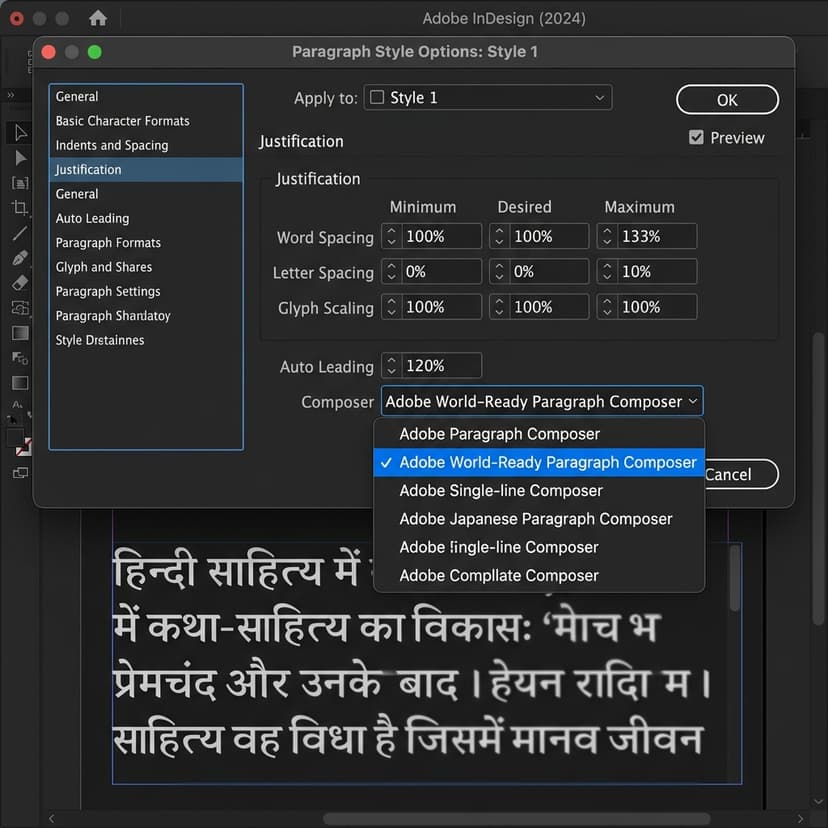
This one setting — World Ready Composer — fixes the majority of Hindi rendering issues in InDesign.
Step 5 — Enable ligatures
Select all your Hindi text. Go to Type > Character and open the OpenType panel. Make sure Ligatures is enabled. Devanagari conjuncts are implemented as OpenType ligatures — if ligatures are off, conjuncts like क्ष, त्र, and ज्ञ appear as two separate characters instead of the correct combined form.
Step 6 — Verify the output
Your Hindi text should now render correctly — matras in the right positions, conjuncts forming properly, shirorekha running continuously across each word. If it still looks wrong, check the InDesign version issue in Part 3 of this guide.
The Four Settings That Make Hindi Work in InDesign
- ✅ Unicode Devanagari font — Adobe Devanagari, Mukta, or Noto Sans Devanagari
- ✅ World Ready Paragraph Composer — set in Paragraph Style > Justification
- ✅ Language: Hindi (India) — set in Paragraph Style > Advanced Character Formats
- ✅ Ligatures enabled — set in Type > Character > OpenType panel
Part 2 — Shree Lipi Legacy Fonts in InDesign
Many Hindi and Marathi DTP professionals work with Shree Lipi legacy fonts — Shree Dev 0714, Shree Dev 0708, Shree Dev 0750 — in InDesign, particularly when opening files originally created in PageMaker or when printing press requirements specify Shree Lipi fonts.
The fundamental rule: Shree Lipi fonts in InDesign must use a different approach from Unicode fonts. They are not OpenType Unicode fonts — they are ASCII-mapped legacy fonts. The World Ready Paragraph Composer is not designed for them and may interfere with their rendering.
How to use Shree Lipi fonts in InDesign
The correct workflow is not to type Unicode and apply Shree Lipi directly. That produces garbled output because the Unicode text does not match the Shree Lipi character positions.
The correct workflow is:
- First, type or collect your Hindi/Marathi text in Unicode. Keep this as your master copy.
- Second, convert the Unicode text to Shree Lipi encoding using the Unicode to Shree Lipi Converter at unicodetoshreelipi.com. Select the correct target variant — Shree Dev 0714, Shree Dev 0708, or whichever variant your InDesign template uses.
- Third, copy the converted output — which will look like random ASCII characters.
- Fourth, paste the converted output into InDesign and apply the matching Shree Lipi font. The text renders as correct Devanagari because every ASCII byte maps to the right Devanagari glyph in the Shree Lipi font file.
For Shree Lipi fonts in InDesign, use the standard Adobe Paragraph Composer, not the World Ready Paragraph Composer. Legacy ASCII fonts do not use the OpenType shaping rules that World Ready Composer applies — using it may cause additional rendering issues.
Set the language to English for Shree Lipi text blocks. Since InDesign reads the text as ASCII (English characters), setting it to Hindi can cause unexpected composition behaviour. Let InDesign treat it as the ASCII stream it actually is, and rely on the font to provide the visual Devanagari output.
Export as PDF with fonts embedded for all print output. Go to File > Export > Adobe PDF. Under Advanced, enable Embed All Fonts. This ensures the Shree Lipi font travels with the document to the press, eliminating font substitution at print time.
Unicode vs Shree Lipi in InDesign — Which Should You Use?
The answer depends entirely on your output destination and your existing workflow.
✅ Use Unicode (Adobe Devanagari, Mukta, Noto Sans Devanagari) if:
- Your design is going to digital output — web, digital PDF, ePub, email
- Your InDesign templates are being built from scratch in 2025 or later
- Your content will also be used in other applications — websites, databases, government portals
- Your press supports modern OpenType Unicode font embedding in PDF
🖨️ Use Shree Lipi (Shree Dev 0714, 0708, 0750) if:
- Your press or publisher has existing InDesign templates built around Shree Lipi fonts
- Your file needs to match legacy PageMaker content that used Shree Lipi
- The printing press has specified Shree Lipi variants in their file requirements
- You are editing archived Marathi or Hindi files originally typeset in Shree Lipi
The workflow recommendation for new projects: Unicode. The workflow for legacy template compatibility: Shree Lipi with the conversion workflow above.
Part 3 — The InDesign 2024/2025 Hindi Bug and How to Fix It
This is urgent and verified. If you upgraded to InDesign 2024 (version 19) or InDesign 2025 (version 20) and Hindi text that worked perfectly in InDesign 2023 is now broken — this is why.
Adobe introduced the HarfBuzz text shaping engine in InDesign CC 2024. HarfBuzz is an open-source text shaping engine used across many modern applications. The intention was to improve complex script rendering. In practice, the change introduced rendering issues for several Devanagari fonts and workflows that were stable in InDesign 2023 (v18.5).
Symptoms reported in the Adobe community forums (March 2025 thread with 1,475 views):
- Text that rendered correctly in InDesign 2023 is broken in 2024/2025
- Same fonts, same settings, same document — different output depending on version
- Fonts including Mukta, Kokila, Hind, Noto Sans Devanagari, and Anek Devanagari affected
- The specific issue with Devanagari candra E not joining was identified as a root cause
Fix 1 — Enable Legacy Support in Advanced Type Preferences
Go to InDesign Preferences (Edit > Preferences on Windows / InDesign > Preferences on Mac). Click Advanced Type. Enable the "Legacy support" toggle. Click OK. Restart InDesign. This reverts the text shaping engine to the pre-HarfBuzz behaviour for the affected fonts and restores correct Hindi rendering.
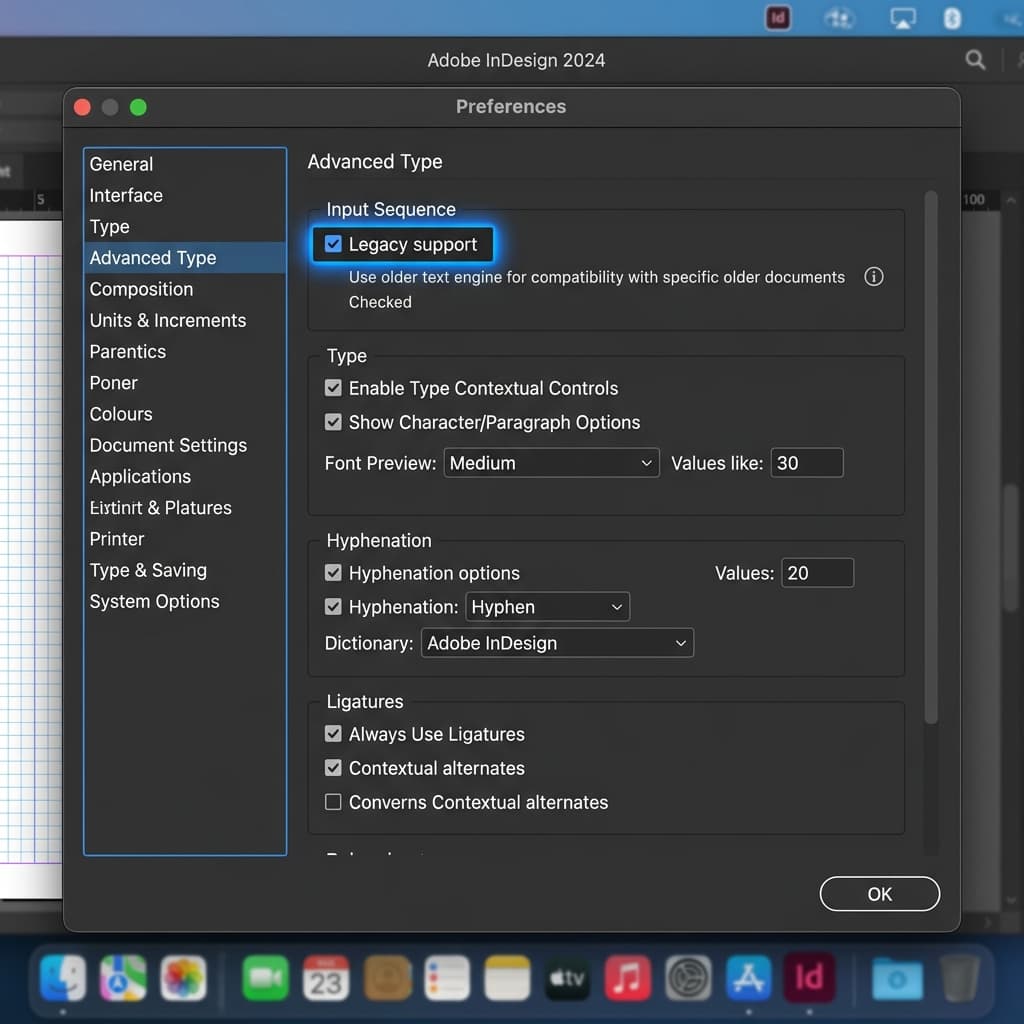
If you upgraded to InDesign 2024 or 2025 and Hindi suddenly broke — this is the fix. Preferences > Advanced Type > enable Legacy Support.
Fix 2 — Use Adobe World Ready Paragraph Composer explicitly
If Legacy Support alone does not fully resolve the issue, ensure the Adobe World Ready Paragraph Composer is explicitly selected in the Paragraph Style for all Hindi text blocks. This has been confirmed to work on InDesign v20.2 on Mac with Arial Unicode MS font.
Fix 3 — Roll back to InDesign 18.5
For teams where the HarfBuzz issue is widespread and no font combination resolves it, rolling back to InDesign 18.5 (the last stable 2023 version) is the recommended interim solution from the Adobe community. Note that InDesign v18 is no longer directly available in Creative Cloud downloads for all users — contact Adobe Customer Support to request the download link for v18.5 if you need it.
For Kruti Dev specifically: Kruti Dev stopped working correctly in InDesign after approximately version 18. Since Kruti Dev is a non-Unicode ASCII font that uses the Private Use Area for precomposed Devanagari glyphs, the workaround it relies on for Devanagari character composition is not stable across all InDesign versions. If you use Kruti Dev in InDesign, the recommendation is to migrate to either Unicode fonts (for modern workflows) or the Shree Lipi conversion workflow described in Part 2 above.
Part 4 — Complete Font Issue Checklist
Use this checklist when any Hindi text problem appears in InDesign.
🔴 Problem: Boxes with X appear instead of Hindi text.
Cause 1: Font not installed. Go to Type > Find Font. If the font name appears with a warning icon, it is missing from the system. Install the font and restart InDesign.
Cause 2: Font installed but World Ready Composer not enabled. The default Adobe Paragraph Composer cannot render Unicode Devanagari correctly. Enable World Ready Composer in the Paragraph Style settings.
🔴 Problem: Conjuncts like क्ष, त्र, ज्ञ appear as two separate characters.
Cause: OpenType Ligatures are disabled, or the font does not include these conjuncts as OpenType ligatures.
Fix: Select the text. Go to Type > Character > OpenType panel. Enable Ligatures. If the font still does not form conjuncts, switch to Adobe Devanagari or Noto Sans Devanagari.
🔴 Problem: Matras appearing in wrong position or floating incorrectly.
Cause: World Ready Composer is not active, or Language is set to English instead of Hindi (India).
Fix: In Paragraph Style, set Language to Hindi (India) under Advanced Character Formats. Set Composer to Adobe World Ready Paragraph Composer under Justification.
🔴 Problem: Shirorekha (horizontal headline bar) is broken — not connecting across characters.
Cause: Incorrect font rendering without World Ready Composer, or the font's Devanagari OpenType tables are incomplete.
Fix: Enable World Ready Composer. If the issue persists, switch to Adobe Devanagari or Noto Sans Devanagari, which have complete shirorekha handling.
🔴 Problem: Half-characters (half-forms) before conjuncts are showing as full characters.
Cause: OpenType GSUB (glyph substitution) table not being accessed — either Ligatures are off, or the composer is not invoking the half-form substitution.
Fix: Enable World Ready Composer and enable Ligatures in the OpenType panel. Set Language to Hindi (India).
🔴 Problem: Hindi worked in InDesign 2023 but broke in InDesign 2024 or 2025.
Cause: HarfBuzz text shaping engine introduced in InDesign CC 2024 is rendering specific Devanagari characters incorrectly.
Fix: Preferences > Advanced Type > enable Legacy Support. If this does not fully resolve, roll back to InDesign v18.5.
🔴 Problem: Shree Dev or Kruti Dev fonts produce garbled output in InDesign.
Cause: Legacy ASCII fonts pasted as Unicode text mismatch. Or the InDesign version's text engine is not compatible with the font's Private Use Area glyph workaround.
Fix: Use the Shree Lipi conversion workflow in Part 2 — convert Unicode to Shree Lipi first using unicodetoshreelipi.com, paste the converted output, and apply the Shree Lipi font with Standard Composer (not World Ready Composer).
🔴 Problem: Hindi text prints differently from how it looks on screen.
Cause: Font not embedded in the exported PDF.
Fix: File > Export > Adobe PDF > Advanced tab > Subset Fonts Below 100%. This embeds all fonts. Alternatively, use File > Export > PDF/X-1a preset which forces full font embedding.
Best Fonts for Hindi in InDesign 2026
For Unicode workflows (recommended for new projects):
- Adobe Devanagari — Best integration with InDesign, available via Creative Cloud. Designed for professional Hindi and Marathi publishing.
- Mukta — Free on Google Fonts. 7 weights. Clean, professional, widely used in Indian print and digital design. Confirmed working in InDesign 2024+ with World Ready Composer.
- Noto Sans Devanagari — Google's comprehensive font. Maximum character coverage including Sanskrit and Vedic extensions. 9 weights. Excellent choice for multilingual documents.
- Hind — Free on Google Fonts. Clean and readable at body text sizes. Good for newspaper-style layouts.
- Kokila — Bundled with Windows. Works reliably in InDesign. Good for traditional Hindi book publishing aesthetics.
For Shree Lipi legacy workflows:
- Shree Dev 0714 — The standard for Marathi newspaper and DTP work. Most widely used Shree Dev variant. Download free from unicodetoshreelipi.com/fonts.
- Shree Dev 0708 — For book typesetting and formal documents. Traditional Devanagari letterforms.
- Shree Dev 0750 — For display text and headings.
The Unicode to Shree Lipi Converter at unicodetoshreelipi.com handles conversion to all Shree Dev variants, so your Unicode master converts cleanly to whichever variant your InDesign template requires.
Workflow Summary — Choosing the Right Approach
| Scenario | Recommended Workflow |
|---|---|
| Starting a new InDesign document in 2026 | Use Unicode fonts (Adobe Devanagari, Mukta, or Noto Sans Devanagari). Enable World Ready Paragraph Composer. Set language to Hindi (India). Disable hyphenation. Enable ligatures. |
| Working with existing Shree Lipi templates | Use the Shree Lipi conversion workflow. Convert Unicode to Shree Lipi at unicodetoshreelipi.com, paste converted output, apply Shree Lipi font, use Standard Composer. Export PDF with font embedding. |
| Upgraded to InDesign 2024/2025 and Hindi is broken | Enable Legacy Support in Preferences > Advanced Type. If unresolved, roll back to InDesign v18.5. |
| Opening old PageMaker files with Shree Lipi fonts | Modular Infotech provides a Shree Lipi InDesign plugin for importing PageMaker files. Contact Modular Infotech for the current plugin version. See our History of Shree Lipi guide for background. |
Key Takeaways
- The World Ready Paragraph Composer is the single most important InDesign setting for Hindi — without it, nothing else works correctly.
- Language must be set to Hindi (India) in the Paragraph Style — not English. This is the most frequently missed step.
- Ligatures must be enabled for conjuncts (क्ष, त्र, ज्ञ) to form correctly.
- InDesign 2024/2025 HarfBuzz issue: Preferences > Advanced Type > Legacy Support fixes the majority of post-upgrade problems.
- For Shree Lipi fonts in InDesign, always convert Unicode to Shree Lipi first using unicodetoshreelipi.com — never paste Unicode directly.
- Always export PDF with fonts embedded for print delivery.
Conclusion
Hindi typography in InDesign is entirely manageable once you know exactly what the software needs — and the 2024/2025 version changes make understanding that more important than ever.
The core setup is four things: a proper Unicode Devanagari font, World Ready Paragraph Composer enabled, language set to Hindi (India), and ligatures on. Get these four right and InDesign handles Devanagari correctly.
For Shree Lipi legacy workflows — the font systems that power Marathi and Hindi newspaper printing across India — the Unicode to Shree Lipi Converter at unicodetoshreelipi.com is the tool that bridges modern Unicode content and legacy Shree Lipi print templates. Type in Unicode, convert for the press, export PDF with embedding. Clean, reliable, no retyping.
For anyone working with Hindi in InDesign 2024 or 2025 with broken rendering — Preferences > Advanced Type > Legacy Support. That one toggle fixes the majority of post-upgrade issues.
Explore our related guides on CorelDraw Hindi Typing with Shree Lipi, PageMaker Unicode to Legacy Conversion, and Unicode vs ASCII — How Hindi Fonts Actually Work for the complete picture of professional Hindi DTP in 2026.
Read Next:
- CorelDRAW Mein Hindi Typing Kaise Kare – Shree Lipi Method →
- How to Convert Hindi Text for PageMaker – Unicode to Legacy Font Guide →
- Unicode vs ASCII – How Hindi Fonts Actually Work →
- Shree Dev 0714 Complete Guide – Uses, Installation & Unicode Conversion →
- Mangal Font Download Free – Complete Windows Install Guide →
Frequently Asked Questions
Ready to convert? Our main tool handles Unicode ↔ Shree Lipi with the same accuracy and speed — instantly in your browser.
Try Unicode ↔ Shree Lipi Converter